
Products and competitor links
Keep products in sync with your store feed
Many online stores already publish a product feed: one file that lists every product, often made for Google Shopping or a Facebook catalog. Connect that file to BlackAha and your catalog stays up to date by itself. You then choose which feed products to track.
Before you start
- The web address of your product feed file. Your store platform or marketing app usually shows it in its Google Shopping or catalog settings.
- Your store’s web address saved as the business domain. See Set up your workspace.
- Owner or admin rights in the workspace to edit, pause or delete the feed and to change its schedule. Other members can add a feed, but not change it afterwards.
What the feed must contain
BlackAha reads XML (Google Merchant or RSS), CSV/TSV and JSON files. For each product it needs three things:
- a title (often called title or name),
- the product page address (link),
- a product code (id, sku or product_id).
GTIN, brand, category, price, image and stock status are used when present. Products missing one of the three required fields are skipped and counted in the sync results.
Important Every product link in the feed must be on your business domain. If even one product points to another website, the whole file is rejected. This keeps other stores’ products out of your catalog.
Connect the feed

Open the feed settings
Go to SettingsSet business domain. Find the Workspace feed card and press Add feed.
Enter the feed address
Paste the Feed URL. It must be a public https:// address that anyone can open, not an address inside your office network.
Choose the format and schedule
Pick the file Format and how often BlackAha should read it under Auto sync: Every 6 hours, Daily or Weekly. A Display name (optional) is optional.
Save and sync
Save the feed, then press Sync now to read it for the first time. You can leave the page. It updates by itself when the sync is done.
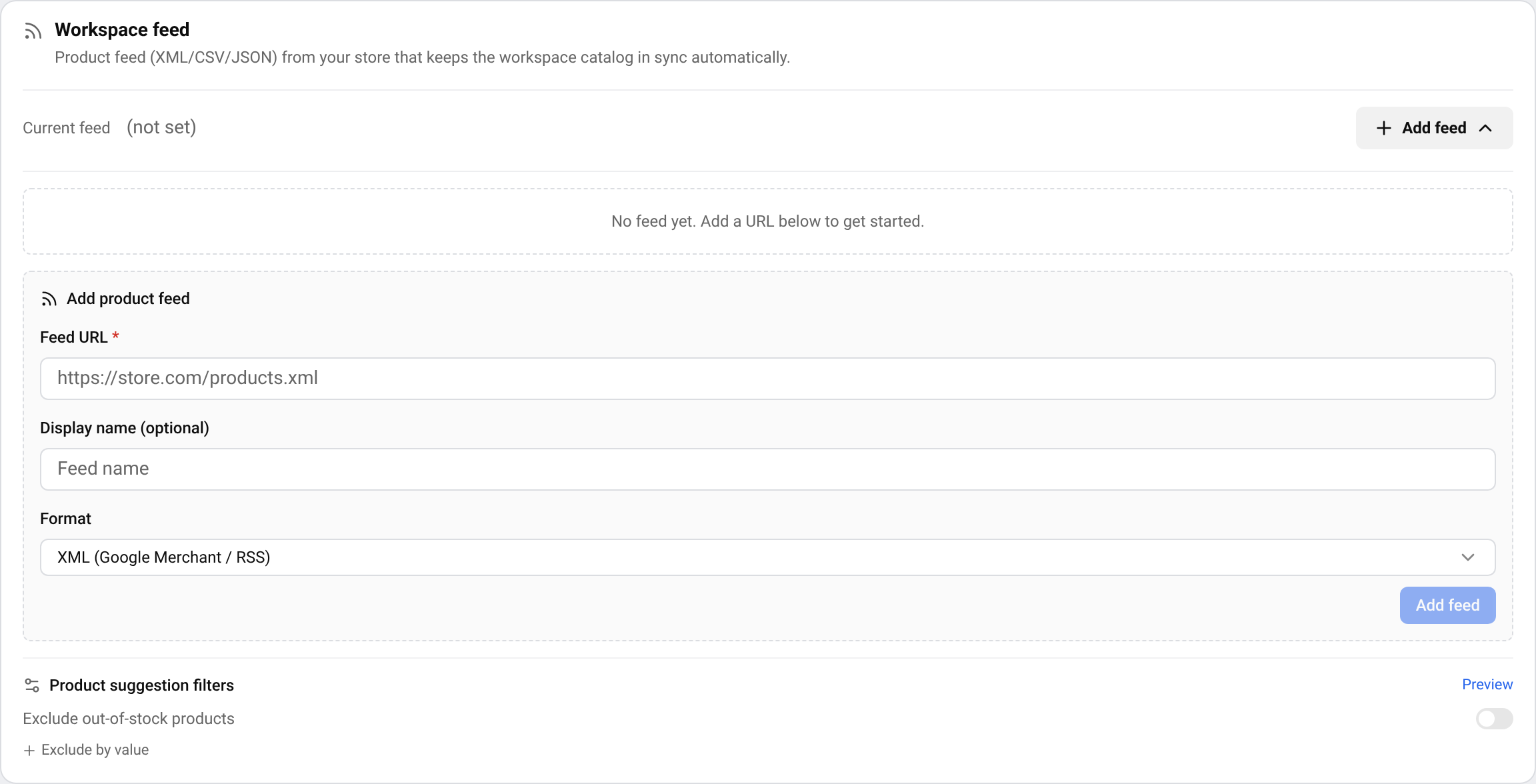
A workspace has one feed. To use a different file, edit the feed or delete it and add the new one. Deleting a feed does not delete products already in your catalog.
Tip Feed sync depends on your plan. If the card shows a lock, see what each plan includes on the pricing page.
Read the sync status
- File accessible: BlackAha can open the file. If it shows Cannot access feed file, press Re-check after fixing the address.
- Sync successful: the sync worked. It shows how many products were read, how many are new or updated, and how many were skipped.
- File unchanged: the file has not changed since the last sync, so there was nothing to do.
- Sync failed: read the message under it. The most common causes are listed below.
Track products from the feed
Syncing fills your catalog, but it does not start price tracking by itself. You choose which products to track.
Open the feed list
In Products, press Create product and open the Feed tab.
Pick a product
Search by name or code, then press Add to Products. The product is created with its details from the feed and its page on your store.
Add competitor pages
Add links to the same product on other stores, by hand or with Discover URLs. See Find new competitor pages automatically.
To keep the list short, use Product suggestion filters in the feed card: tick Exclude out-of-stock products, or open Exclude by value and click a brand, category or availability value to hide it. These filters only change what is suggested. They never delete anything.
Common sync errors
- Feed file not found (HTTP 404). Check the feed URL.
- This file is an XML sitemap, not a product feed. Enter the correct product feed URL (usually has <item> or <entry>).
- Product URL domain does not match the workspace business domain. All products in the feed must have URLs belonging to the business domain.
- Feed file contains no recognized products. Check URL, file format, and data structure.
- Timeout. Feed file is too large or server is slow — try again later.
- Authentication error when downloading feed. File requires credentials — contact admin.
Still failing? Contact support and include the feed address.
Questions
Where do I find my feed address?
Look in the Google Shopping, Merchant Center or Facebook catalog settings of your store platform or feed app. It is a link ending in something like .xml, .csv or .json.
Does the feed change my prices?
No. BlackAha only reads the file. It never writes to your store through the feed.
Who can change the feed?
Only the owner or an admin of the workspace can edit, pause or delete the feed, change the sync schedule or attach login details for a protected feed. Other members can add a feed without login details. For them the edit and delete buttons are hidden.
Related guides
Still stuck?
Open Support in the app and our team will reply there. You can also email our support team; the address is at the bottom of every page.
 English
 ไทย
 Tiếng Việt
 한국어
 日本語
 简体中文
 Français
 Deutsch
 Русский
 Italiano
 Polski
 Español