
Getting started
Change your store address and currency
Two settings shape every comparison in BlackAha: your business domain (the web address of your own store) and the workspace currency (the currency all prices are compared in). Both live on the same settings page.
Before you start
- Owner or admin rights in the workspace. Other members can see these settings but not change them.
Change your business domain
BlackAha reads your own prices from pages on this address. Every other website counts as a competitor.
Open the setting
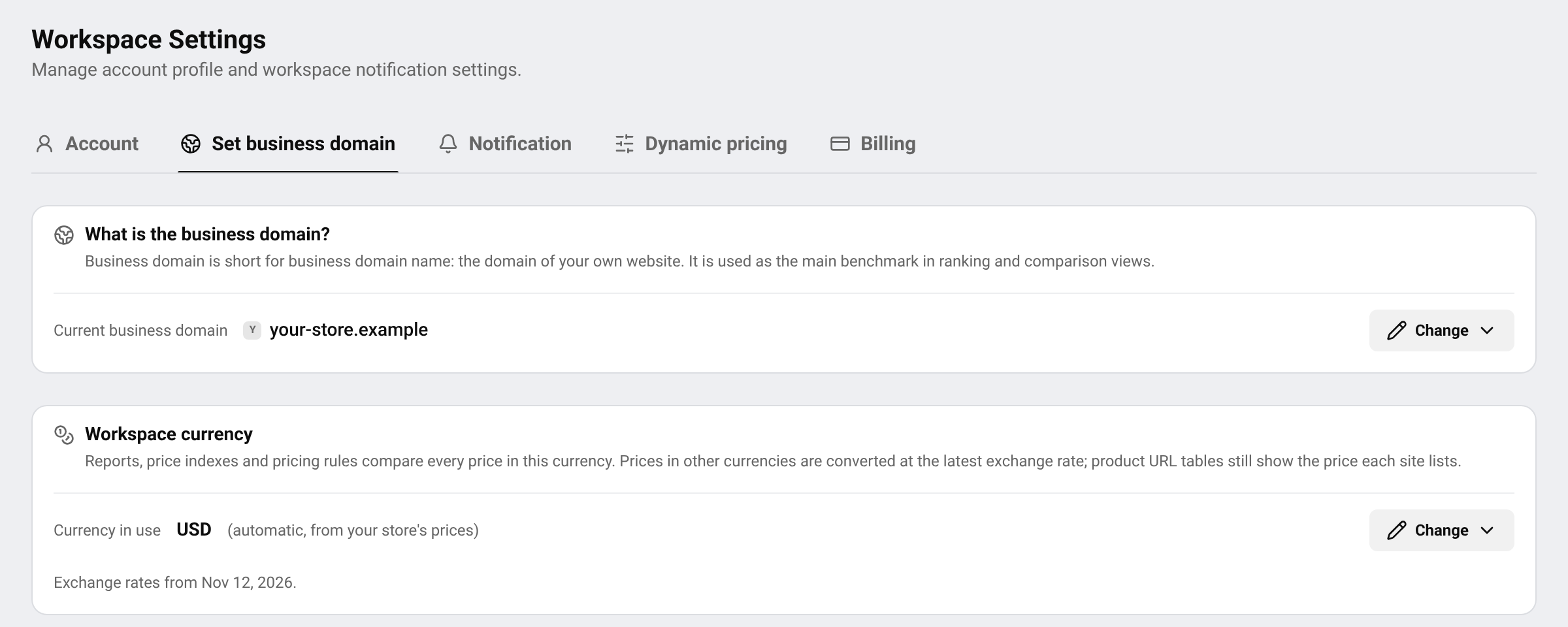
Go to SettingsSet business domain and press Change next to Current business domain.
Enter the new address
Pick a website from the list, or paste your store’s address. A full link is fine too, BlackAha keeps only the domain part. Then press Review change.
Read what will change
The confirmation window shows the current and the new address, and what happens next.
Confirm
Type the new address exactly as shown, to prove it is not a mistake, then press Confirm.
Important The number of changes is limited over a period of time. The settings page shows how many changes you have left. Double-check the address before you confirm.
What happens after a change
- Your own prices are read from pages on the new address.
- Pages on the old address count as competitors from now on.
- Market averages and price indexes are recalculated in the background. This usually takes a few minutes.
- Smart Price suggestions are recalculated for the new address.
Important If you use dynamic pricing, your pricing rules pause after the change and no price is sent to your store. Go to SettingsDynamic pricing to confirm the new address and resume them.
Choose the workspace currency
Competitors may show prices in different currencies. To compare them fairly, BlackAha converts every price into one currency at the latest exchange rate. Reports, price indexes and pricing rules all use it.
Open the setting
On the same page, find Workspace currency and press Change.
Pick a currency
Choose Automatic (your store’s currency) to follow the currency of your own store’s prices, or pick a currency yourself. The currencies found in your tracked prices are listed first.
Save
Press Save. Reports and indexes are recalculated in the new currency.
The date of the exchange rates is shown under the setting. If a currency cannot be converted, prices in it are left out of comparisons, and the page tells you which ones.
Listed prices or converted prices
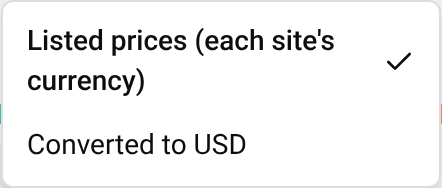
Product tables show each price as the website lists it, in that website’s own currency. To see all prices in your workspace currency instead, use the Price view switch at the top of Products and choose the converted option. Switch back to Listed prices (each site’s currency) at any time. This only changes what you see, not your data.
Questions
Why can I not change the business domain?
Only owners and admins can change it, and only a limited number of times. The settings page tells you which applies.
My store sells in two currencies. Which should I pick?
Pick the currency you set your prices in. Prices in other currencies are converted to it.
Where did I first set the business domain?
Usually during Guided Setup. See Set up your workspace.
Related guides
Still stuck?
Open Support in the app and our team will reply there. You can also email our support team; the address is at the bottom of every page.
 English
 ไทย
 Tiếng Việt
 한국어
 日本語
 简体中文
 Français
 Deutsch
 Русский
 Italiano
 Polski
 Español