
Alerts and notifications
Send price alerts to WhatsApp
BlackAha sends WhatsApp messages through Meta’s WhatsApp Business Cloud API, using a WhatsApp business number that you own. You set it up once in Meta’s developer site, then give BlackAha three things: the Phone number ID, an access token and the phone numbers that should receive the alerts.
Before you start
- A Meta (Facebook) account with access to Meta for Developers and a Meta Business account.
- A phone number for WhatsApp Business. Meta’s test number works for a first try.
- BlackAha open at SettingsNotification. If WhatsApp shows Not in plan, check the pricing page for the plans that include it.
Part 1: Create the Meta app
Create an app
Go to developers.facebook.com, open My Apps and press Create App. Choose the Business type.
Add WhatsApp
In the app, add the WhatsApp product. Meta guides you through linking a business account and a phone number.
Copy the Phone number ID
Open WhatsApp, then API Setup. Copy the Phone number ID. This is a long number shown by Meta, not the phone number itself.
Part 2: Create a permanent access token
The token shown on the API Setup page expires after a day, so alerts would stop the next day. Create a permanent one instead:
Add a system user
In Meta Business Settings, open System Users and add one.
Give it the app
Assign your app to that system user.
Generate the token
Press Generate token, pick your app and tick the whatsapp_business_messaging permission. Copy the token and keep it private.
Part 3: Prepare the recipients
- Write each number in international format, without + and without spaces. For example a US number is written 15551234567.
- While your Meta app is in development mode, add every recipient under To on the API Setup page as well.
- WhatsApp only delivers these messages to people who have written to your business number first, or agreed to receive messages from it. Ask each recipient to send one message to the number.
Part 4: Connect WhatsApp in BlackAha
Open the WhatsApp window
In SettingsNotification, press Configure on the WhatsApp line.
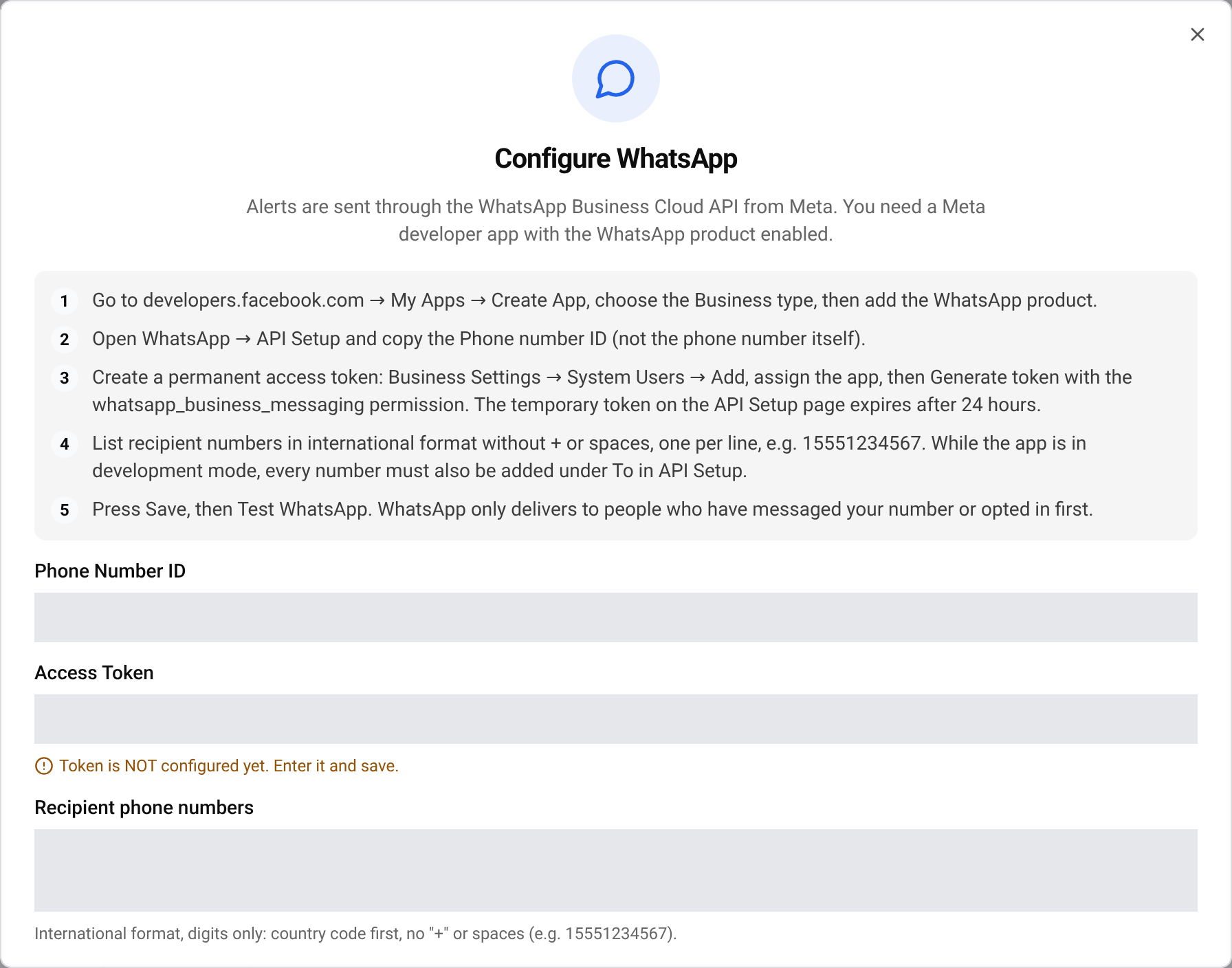
Fill in the fields
Paste the Phone Number ID and the Access Token. Under Recipient phone numbers, enter one number per line. Press Save WhatsApp.
Send a test
Press Test WhatsApp. The test goes to the first number in your list, or to the number you type in Test to (optional override).
Turn WhatsApp on
Close the window and turn on the WhatsApp switch on each card where you want WhatsApp alerts.
Important For your safety, BlackAha never shows the saved token again. To replace it, click the field and type the new token. Leave it alone to keep the current one.
If the test message does not arrive
- Check that you pasted the Phone number ID, not the phone number.
- If alerts worked for a day and then stopped, you probably used the temporary token. Create a permanent token as in Part 2.
- Make sure the recipient has messaged your business number first, and is listed under To while the app is in development mode.
- Check the number format: country code first, no + and no spaces.
- If the line shows Needs attention, WhatsApp rejected the saved details. Paste them again and send a new test.
Questions
Can several people receive the alerts?
Yes. List every number, one per line. Each one receives the alerts.
Does Meta charge for these messages?
Meta may charge for WhatsApp Business messages depending on your country and account. Check your Meta billing settings.
Which alerts go to WhatsApp?
Every card in the notification settings where the WhatsApp switch is on. See Get price change notifications.
Related guides
Still stuck?
Open Support in the app and our team will reply there. You can also email our support team; the address is at the bottom of every page.
 English
 ไทย
 Tiếng Việt
 한국어
 日本語
 简体中文
 Français
 Deutsch
 Русский
 Italiano
 Polski
 Español