
Smart Price and automatic pricing
Connect your store to update prices
To let BlackAha change prices in your shop, your store needs the BlackAha plugin and a connection to your workspace. Once connected, every new price from your pricing rules is sent to the store, and the store confirms it.
Before you start
- Admin access to your store’s back office, to install a plugin.
- Owner or admin rights in your BlackAha workspace.
- Your store’s web address saved as the business domain.
Step 1: Install the plugin
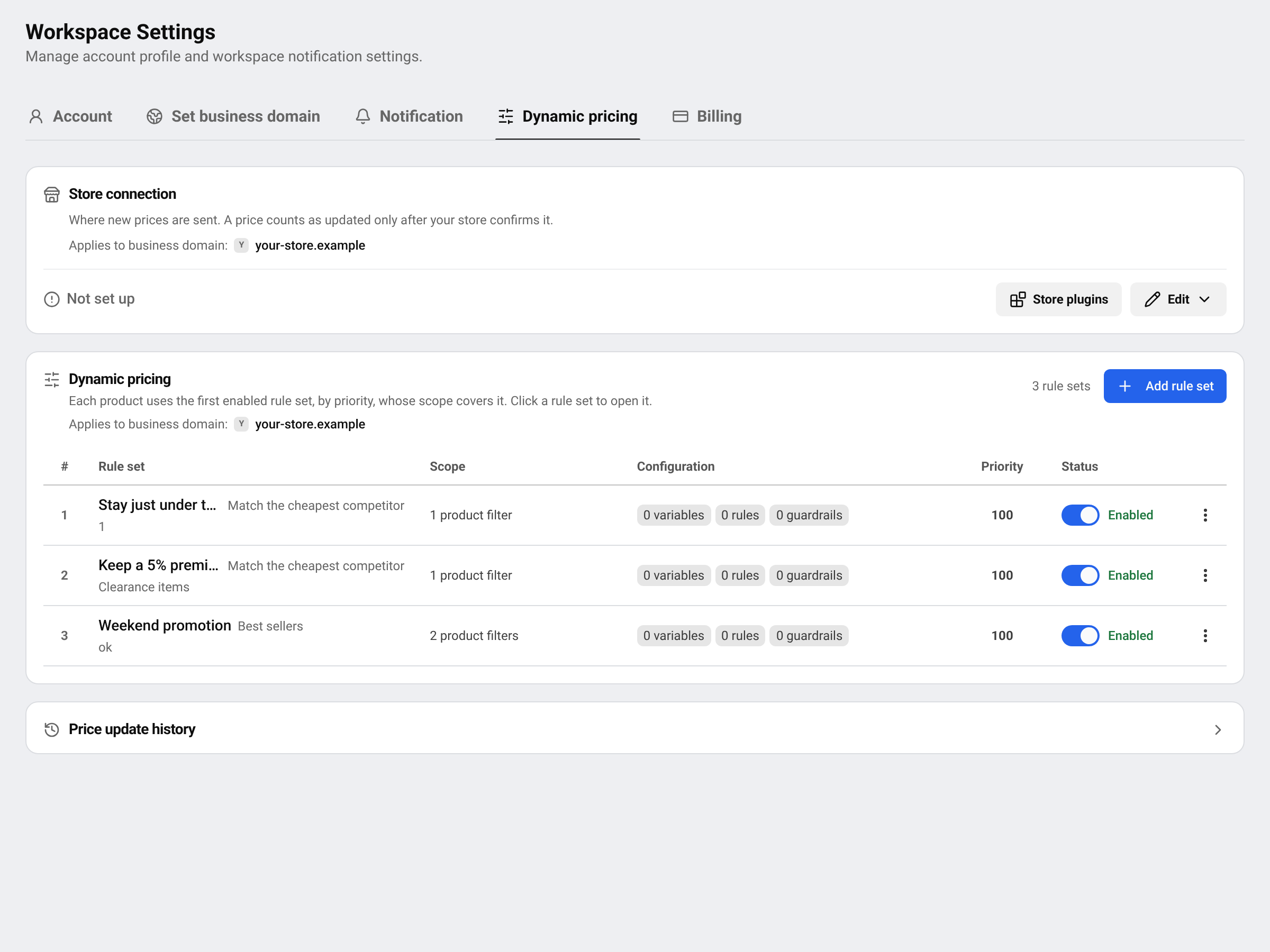
Go to SettingsDynamic pricing. In the Store connection card, press Store plugins. Find your platform and press Install plugin. Then install it in your store like any other plugin.
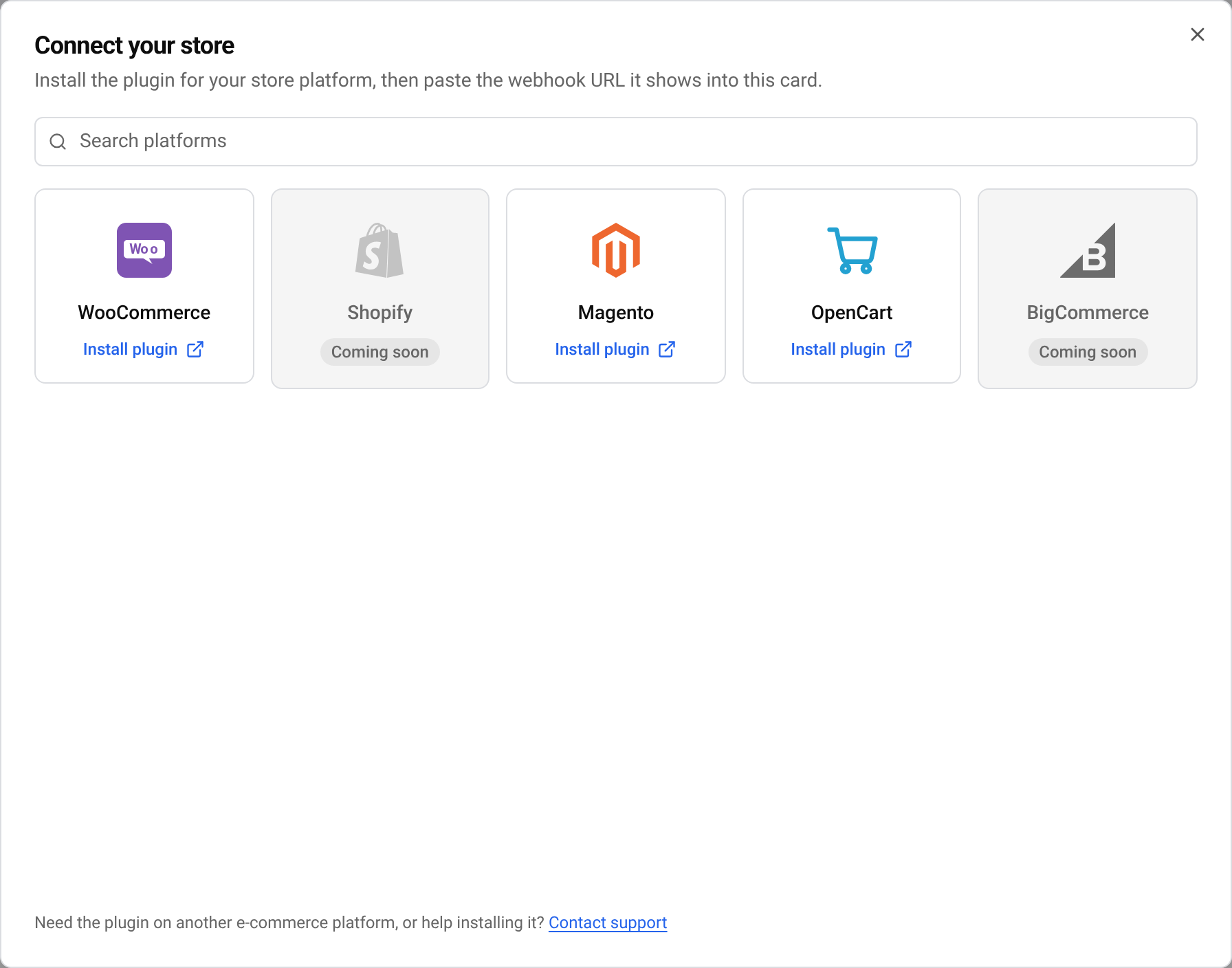
Platform pages with more details: WooCommerce, OpenCart and Magento. Platforms marked Coming soon are not available yet.
Tip Using another platform, or need help installing? Press Contact support in the same window.
Step 2: Connect from your store
The easiest way is to start the connection from the plugin in your store’s back office. It sends you to BlackAha with a connection request.
Check the request
BlackAha shows which store asked to connect. Only connect a store you manage. If you did not start this from your store, cancel.
Approve
Press Connect. Nothing is sent until the store confirms the connection — we check it automatically.
If the request fails, the page explains why and offers Try again or Connect manually. A common cause is a firewall or security plugin on your store blocking the check.
Or connect by hand
Copy the webhook address
In the plugin’s settings, copy the Webhook URL.
Paste and save
In BlackAha, press Edit in the Store connection card, paste the address, keep Enabled switched on and press Save connection.
Copy the secret key
Secret key — paste it into your store plugin now. It will not be shown again. Paste it into the plugin’s settings and save there.
Test
Press Test connection. When it works, the card shows Connected. If you don’t, we test it for you about a minute after saving, and keep retrying for 2 hours.
Important Lost the secret key? Press New secret key. Your store will stop receiving prices until you paste the new key into the plugin.
Read the connection status
- Connected: prices can be sent. The card also says whether they are sent automatically.
- Not connected: saved but not tested yet. No price is sent until the test succeeds.
- Connection broken: Your store stopped accepting prices. Check the address and secret key in your store plugin, then click Test connection.
- Not set up: no store has been connected yet.
To stop sending prices for a while, switch Enabled off and save. Rules keep calculating prices in BlackAha.
Questions
Does connecting change any price straight away?
No. Prices are only sent when a pricing rule produces a new price, or when you apply one by hand.
Can I connect more than one store?
A workspace sends prices to one store. Connecting a new store replaces the previous connection, and BlackAha warns you before it does.
Is automatic price updating included in my plan?
It depends on the plan. If the card says it is not included, compare plans on the pricing page.
Related guides
Still stuck?
Open Support in the app and our team will reply there. You can also email our support team; the address is at the bottom of every page.
 English
 ไทย
 Tiếng Việt
 한국어
 日本語
 简体中文
 Français
 Deutsch
 Русский
 Italiano
 Polski
 Español