
Alerts and notifications
Send price alerts to Telegram
BlackAha sends Telegram messages through a small bot that you create yourself. You set it up once, add it to the chat where you want the alerts, and give BlackAha two pieces of information: the bot token and the chat ID.
Before you start
- The Telegram app on your phone or computer.
- The chat that should receive the alerts: a group, a channel, or a private chat with yourself.
- BlackAha open at SettingsNotification. If Telegram shows Not in plan, check the pricing page for the plans that include it.
Part 1: Create your Telegram bot
Open BotFather
In Telegram, search for @BotFather (Telegram’s official tool for making bots), open it and send the message /newbot.
Name your bot
Answer BotFather’s two questions: a display name, then a username ending in “bot”.
Copy the token
BotFather replies with a long code that looks like 123456789:AAF…. This is the bot token. Copy it and keep it private, because anyone who has it can send messages as your bot.
Part 2: Add the bot to your chat
Choose where alerts go
For a team, add the bot to your group or channel like any other member. In a channel, make the bot an admin so it is allowed to post. For yourself only, open a chat with the bot and press Start.
Send one message
Write any message in that chat, for example “hello”. This lets the bot see the chat.
Part 3: Find the chat ID
Open the updates page
In your web browser, open https://api.telegram.org/bot<TOKEN>/getUpdates. Replace <TOKEN> with your bot token, keeping no spaces.
Copy the number
On the page, find “chat”:{“id”: and copy the number right after it. Group numbers start with a minus sign, for example -1001234567890. Keep the minus sign.
Tip The page looks empty? Send another message in the chat, then reload the page.
Part 4: Connect Telegram in BlackAha
Open the Telegram window
In SettingsNotification, press Configure on the Telegram line.
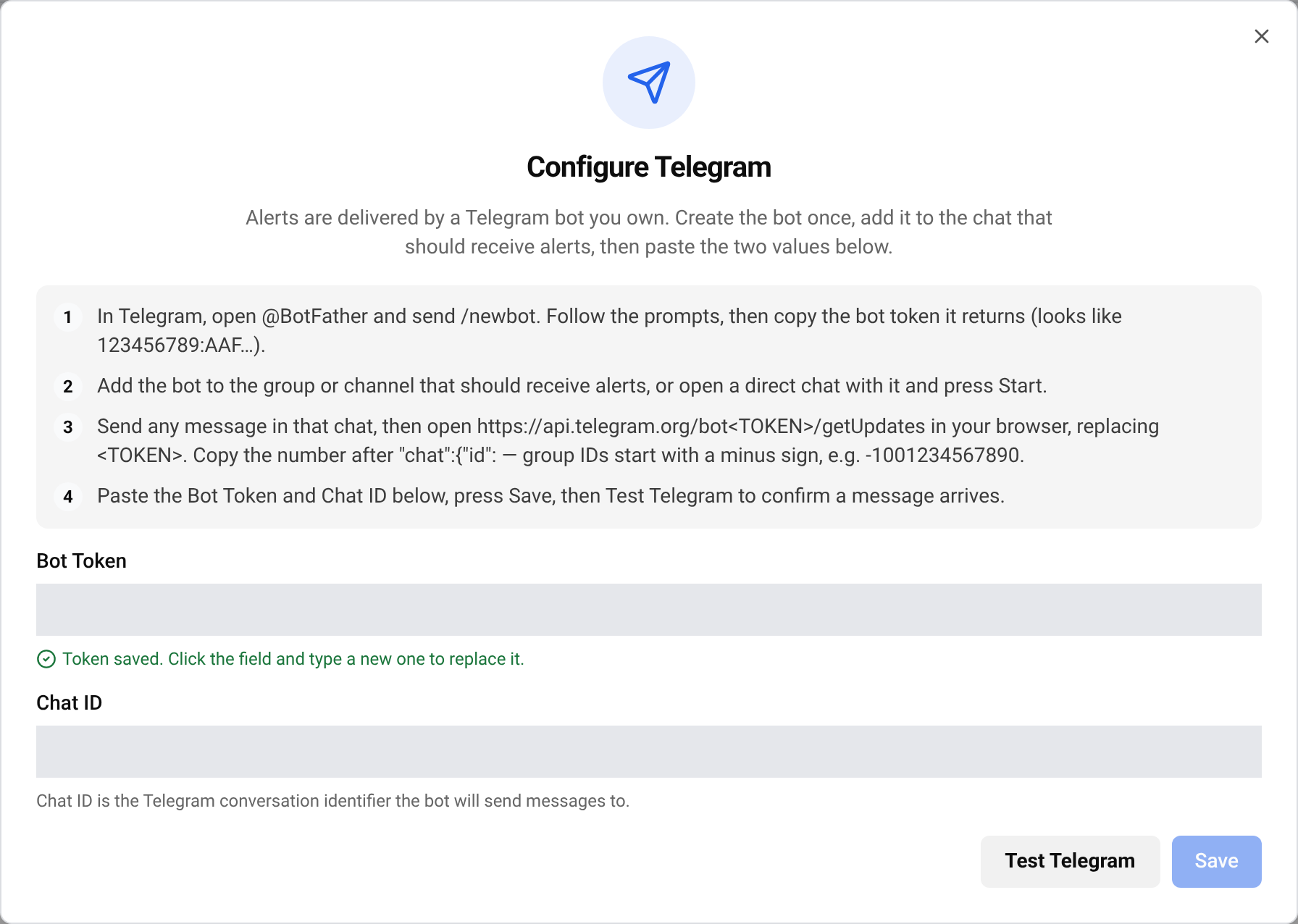
Paste the two values
Paste the token into Bot Token and the number into Chat ID. Press Save.
Send a test
Press Test Telegram. A test message should arrive in your Telegram chat within a few seconds.
Turn Telegram on
Close the window and turn on the Telegram switch. The line now shows Configured.
Important For your safety, BlackAha never shows the saved token again. When you edit the window later, leave the token field empty to keep the current token, or paste a new one to replace it.
If the test message does not arrive
- Check that you copied the whole token, including the numbers before the colon.
- Check that the bot is still in the group or channel. In a channel, it must be an admin.
- Check the chat ID: copy the number exactly, with the minus sign if there is one.
- If the line shows Needs attention, the saved details stopped working. Paste them again and send a new test.
Questions
Can my whole team receive the alerts?
Yes. Add the bot to a group and everyone in the group sees the alerts. Each workspace sends to one Telegram chat.
Is my bot token safe?
BlackAha keeps the token for your workspace and never shows it again. If you think someone else has it, ask BotFather for a new token and paste it into BlackAha.
Which alerts go to Telegram?
Every card in the notification settings where the Telegram switch is on, such as price and stock changes or updates to your own store prices.
Related guides
Still stuck?
Open Support in the app and our team will reply there. You can also email our support team; the address is at the bottom of every page.
 English
 ไทย
 Tiếng Việt
 한국어
 日本語
 简体中文
 Français
 Deutsch
 Русский
 Italiano
 Polski
 Español