
Getting started
Find your way around the app
Everything in BlackAha is reached from the menu on the left side of the screen. This short tour explains what each item is for, so you always know where to look.
Before you start
- A BlackAha account. See Create your account and log in.
The main menu
- Dashboard: a summary of your market, your prices and anything that needs attention. See Read your dashboard.
- Products: the products you track and the store pages linked to each one. See Add a product by hand.
- Price history: every price change in one list. See See every price change in one list.
- Reports: price comparisons by category, brand and competitor. See Compare prices by category and brand.
- URL Dashboard: links that are broken, have moved or need your review. See Fix broken and redirected links.
- Settings: your store address, currency, notifications, dynamic pricing and billing.
On a phone, the menu is hidden. Press the menu button at the top of the screen to open it.
Notifications
The bell next to the BlackAha name shows your latest notifications, such as price changes, with a count of unread ones.
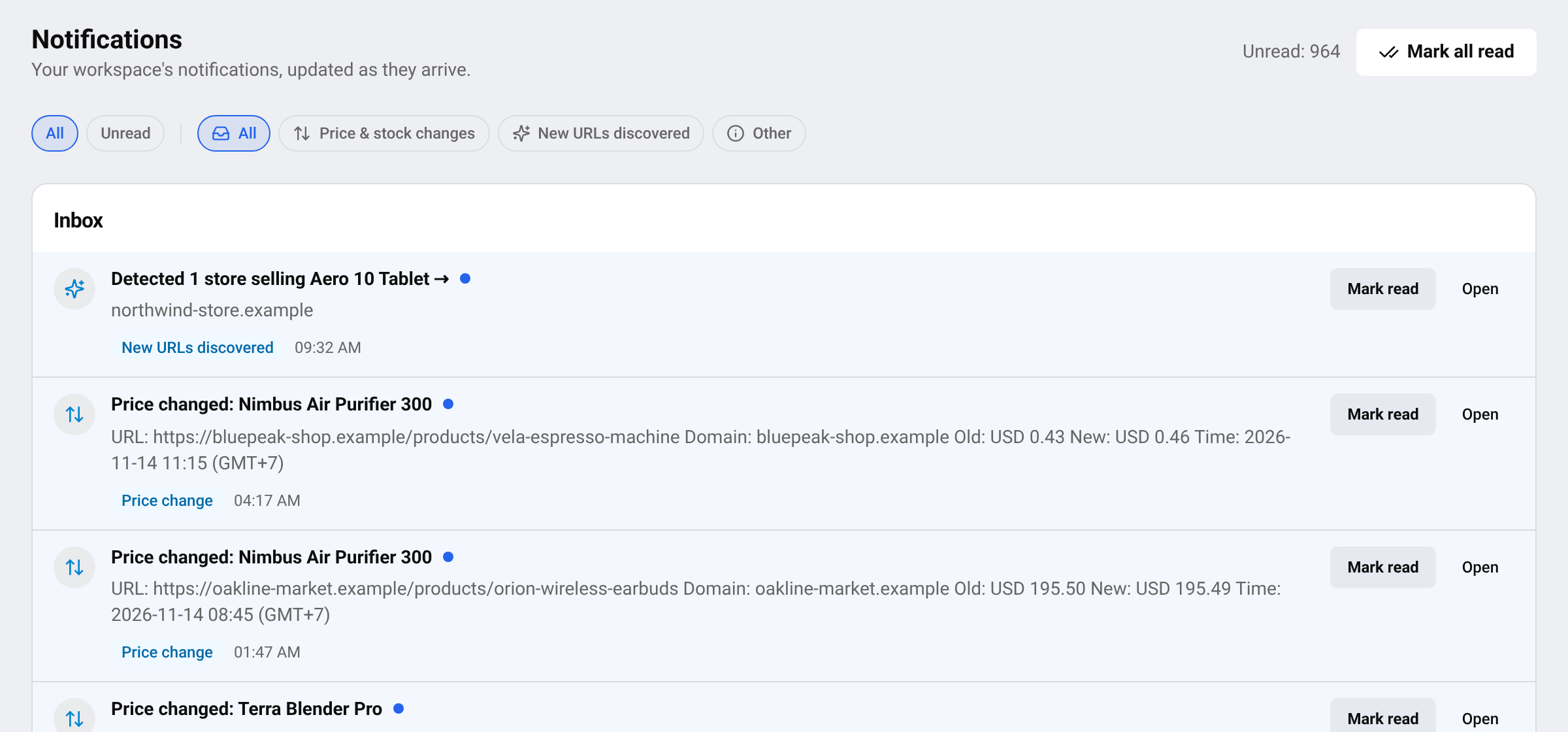
- Press Mark all as read to clear the count.
- Press See all notifications to open the full list, where you can show only unread items.
On the full list, the filters at the top show All notifications, only unread ones, or one kind at a time: Price & stock changes, New URLs discovered and Other (for example URL issue, Store price update and Billing).
To choose which events create a notification, and to send them to email or a chat app as well, see Get price change notifications.
Language, time zone and colours
At the bottom of the menu you find three small controls:
- Language: change the language of the app. Your choice is remembered in this browser.
- Time zone: shows the time zone used for every date and time in the app. It is taken from your device, so dates match your own clock.
- Light / dark switch: choose a light or a dark screen.
Your account menu
Your name or email is shown at the very bottom of the menu. Press it to open shortcuts to Account, Billing and support, and to Log out.
See Update your profile and password, Manage your plan and payments and Contact support.
Messages at the top of the screen
A coloured bar at the top tells you about your subscription, for example when your trial is about to end or a payment did not go through. It links straight to billing. See Manage your plan and payments.
Questions
Can I change the time zone?
The app uses your device’s time zone. Change the time zone of your computer or phone and reload the page.
Where are my settings?
Under Settings in the left menu. Account and Billing are also in the account menu at the bottom.
Related guides
Still stuck?
Open Support in the app and our team will reply there. You can also email our support team; the address is at the bottom of every page.
 English
 ไทย
 Tiếng Việt
 한국어
 日本語
 简体中文
 Français
 Deutsch
 Русский
 Italiano
 Polski
 Español