
Products and competitor links
Import products from a CSV file
Have a list of products in a spreadsheet? Save it as a CSV file and import it. BlackAha creates the new products, updates the ones it already knows, and adds their links, all in one step.
Before you start
- Your product list in a spreadsheet app (Excel, Google Sheets, Numbers…) that can save as CSV.
- For each product: a name and a product code. Links are optional.
Prepare the file
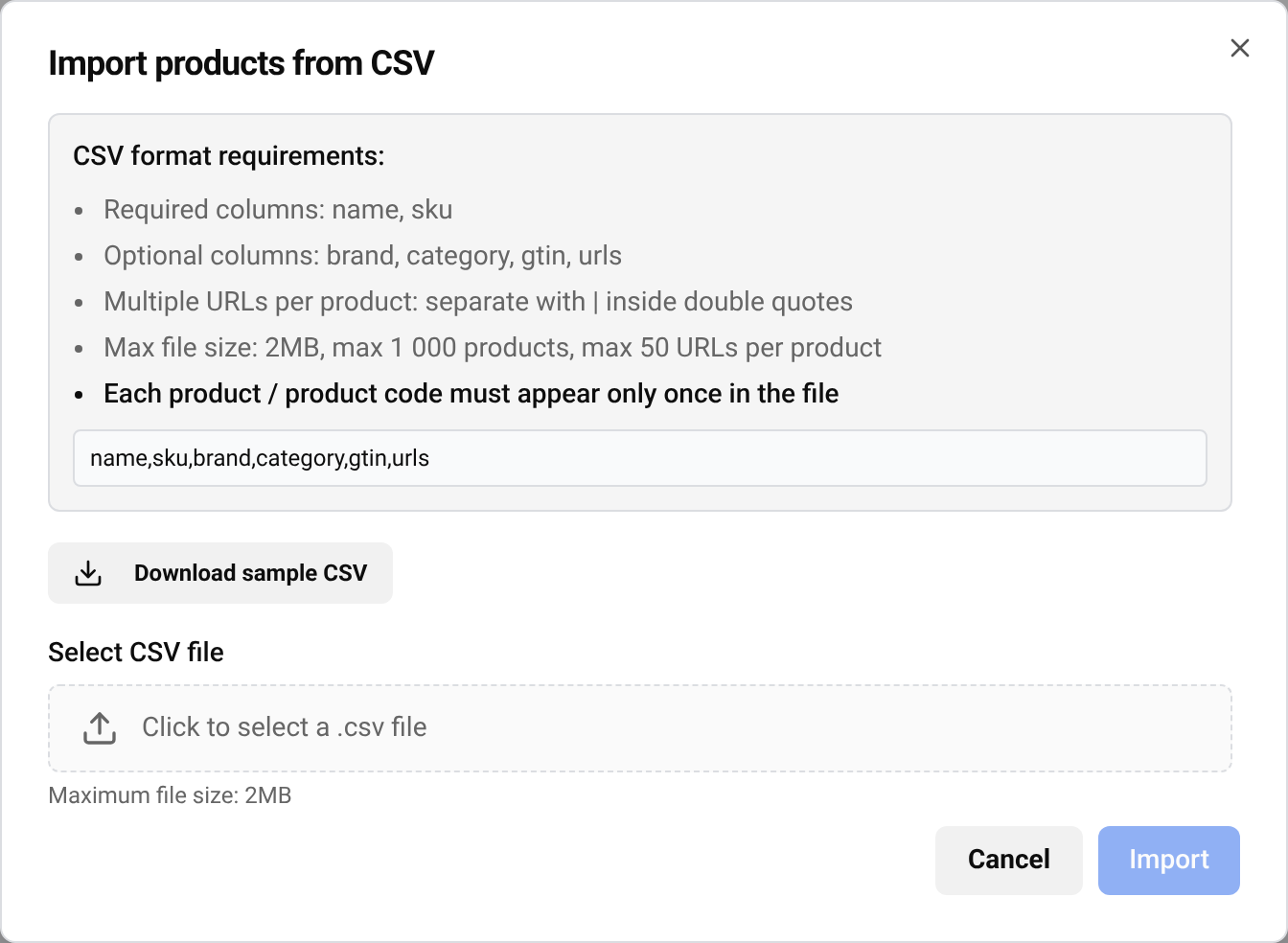
The easiest start is the sample file: go to Products, press Import CSV, then Download sample CSV. Open it, replace the example rows with your products, and keep the first row (the column names) as it is.
- name and sku are required. sku is your product code.
- brand, category, gtin and urls are optional. For a new product you can leave a cell empty.
- To give one product several links, put them in the same urls cell, separated by a | sign, and wrap the whole cell in double quotes.
- Each product code may appear only once in the file.
A short example:
name,sku,brand,category,gtin,urls
Trail Running Shoe 42,TRS-42,Northpeak,Shoes,0123456789012,"https://store-one.example/trail-shoe-42|https://store-two.example/p/trs-42"
Insulated Bottle 750 ml,IB-750,Northpeak,Outdoor,,https://store-one.example/insulated-bottle
Tip In your spreadsheet app, choose CSV UTF-8 when you save. This keeps accents and special characters correct.
The import window lists the current limits: Max file size: 2MB, max 1 000 products, max 50 URLs per product. Larger lists can be split into several files.
Import it
Choose the file
In the import window, press Click to select a .csv file and pick your CSV file. BlackAha checks it straight away.
Read the preview
If everything is fine you see Ready to import, with the number of New products, products To be updated and URLs.
Confirm and import
Tick I have reviewed the preview above and confirm the import, then press Import. When it is done, a summary shows how many products were created and updated, and how many links were added.
Important A row whose product code already exists updates that product: its name, brand, category and GTIN are replaced by the values in the file. An empty cell clears the old value. Check the To be updated number before you confirm, and fill in every column for products you already have.
If the file has errors
When something in the file is not right, nothing is imported. Instead, a table lists each problem with its Row, Field and Message. Fix those rows in your spreadsheet, save the CSV again and choose the file once more.
- Please select a .csv file. Save the spreadsheet as CSV, not as .xlsx.
- A missing name or code: fill in both on every row.
- The same code twice: keep one row per product.
- A link that does not start with https://: copy the full address from the browser.
Questions
Can I update products I already have?
Yes. A row with an existing product code updates that product’s name, brand, category and GTIN with the values in the file, and adds any new links. Empty cells clear the old value, so export or copy the full details first.
Does importing remove links I added before?
No. Importing only adds links. To remove one, see Add, pause and remove competitor links.
My store has a product feed. Should I use CSV?
A feed keeps your catalog up to date by itself. See Keep products in sync with your store feed.
Related guides
Still stuck?
Open Support in the app and our team will reply there. You can also email our support team; the address is at the bottom of every page.
 English
 ไทย
 Tiếng Việt
 한국어
 日本語
 简体中文
 Français
 Deutsch
 Русский
 Italiano
 Polski
 Español