
Products and competitor links
Add a product by hand
A product in BlackAha is one item you sell, plus the links to the store pages where it is sold. BlackAha checks the price on every link for you. This guide shows how to add one product by hand. To add many at once, see Import products from a CSV file.
Before you start
- The name of the product, and a short code you use for it.
- The links to the product’s page on one or more competitor stores. Your own store’s page is welcome too.
Create the product
Open the form
Go to Products and press Create product.
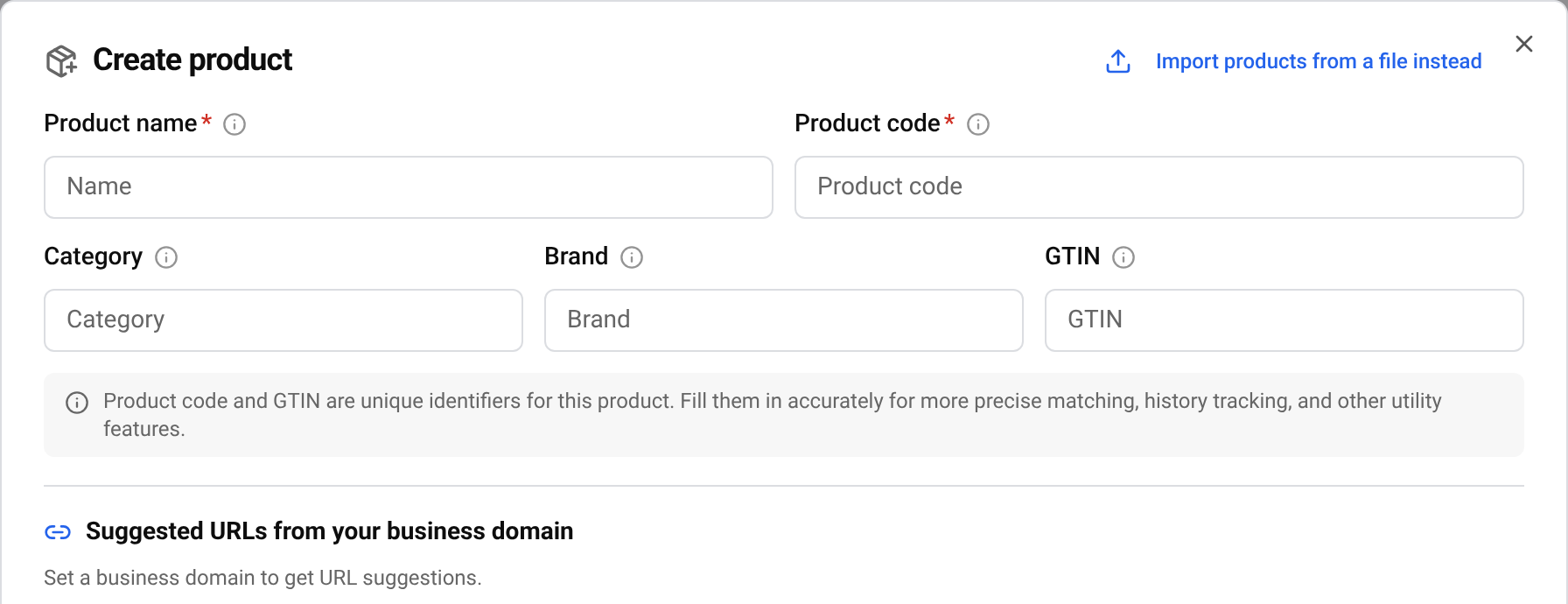
Fill in the two required fields
Type the Product name and the Product code. The code is your own short name for the product, such as the code you already use in your shop. No two products can share the same code.
Add the optional details
Category and Brand let you group and filter products and reports later. Pick an existing one from the list, or type a new name to create it. GTIN is the barcode number printed on the box. It helps BlackAha match the right product on other stores.
Create it
Press Create. The product is saved, and the form moves on to its links.
Tip If you type a code that already belongs to another product, the form tells you which one. You cannot create a second product with that code, but you can press Add URLs to this product to add your links to the existing one instead.
Add the pages to watch
Each link is one store page. BlackAha reads the price on that page, so a product without links has no prices.
Copy the page address
Open the product on a competitor’s website and copy the address from your browser’s address bar. Use the page of this exact product, the one that shows its price, not a category or search page.
Paste it in
Paste the address into Product page links and add it. Repeat for each store. A link must start with https://.
Finish
Press Done. If you do not have the links yet, press Add links later and add them later from the product.
The first price usually arrives within a few hours. Until then the link shows Coming soon.
Pages suggested from your own store
If you have added your store’s web address (your business domain), the form also lists product pages from your own store that you do not track yet, under Suggested URLs from your business domain. Select a page to link it to the new product, or ignore pages you do not need.
- Not added: pages not yet linked to any product.
- Tracked: pages already linked to a product.
- Ignored: pages you chose to ignore. Press Restore to bring one back.
If your store has a product feed connected, the Feed tab lets you pick a product from that feed instead of typing it. See Keep products in sync with your store feed.
Tip No business domain yet? The form says so. You can add it any time, see Set up your workspace.
Add more links later
Find the product
In Products, search by name or code.
Add the link
Press Add URL on the product, paste the page address and press Save.
Not sure where your product is sold? Discover URLs searches the web for you. See Find new competitor pages automatically.
Questions
Do I need the GTIN?
No. It is optional, but it helps BlackAha tell similar products apart.
Can I change the name or code later?
Yes. Open the product and press Update product. See the guide on managing links and products.
How many products and links can I add?
It depends on your plan. You can compare plans on the pricing page.
Should I add my own store’s page?
Yes, if you can. With your own page added, BlackAha can show where your price stands against competitors.
Related guides
Still stuck?
Open Support in the app and our team will reply there. You can also email our support team; the address is at the bottom of every page.
 English
 ไทย
 Tiếng Việt
 한국어
 日本語
 简体中文
 Français
 Deutsch
 Русский
 Italiano
 Polski
 Español