
Dashboard and reports
Read your dashboard
The Dashboard is the first page you see after logging in. It answers a few questions from top to bottom: how am I doing, what changed in the market, who is putting pressure on me, what can I do about it, and what needs fixing.
Before you start
- Some products with competitor links. Until then, most cards are empty. See Add a product by hand.
- Your store’s web address saved as the business domain, so your prices can be compared. See Set up your workspace.
The sections of the page
The bar at the top lists the sections. Click one to jump to it. All cards stay on one page, so you can also just scroll.
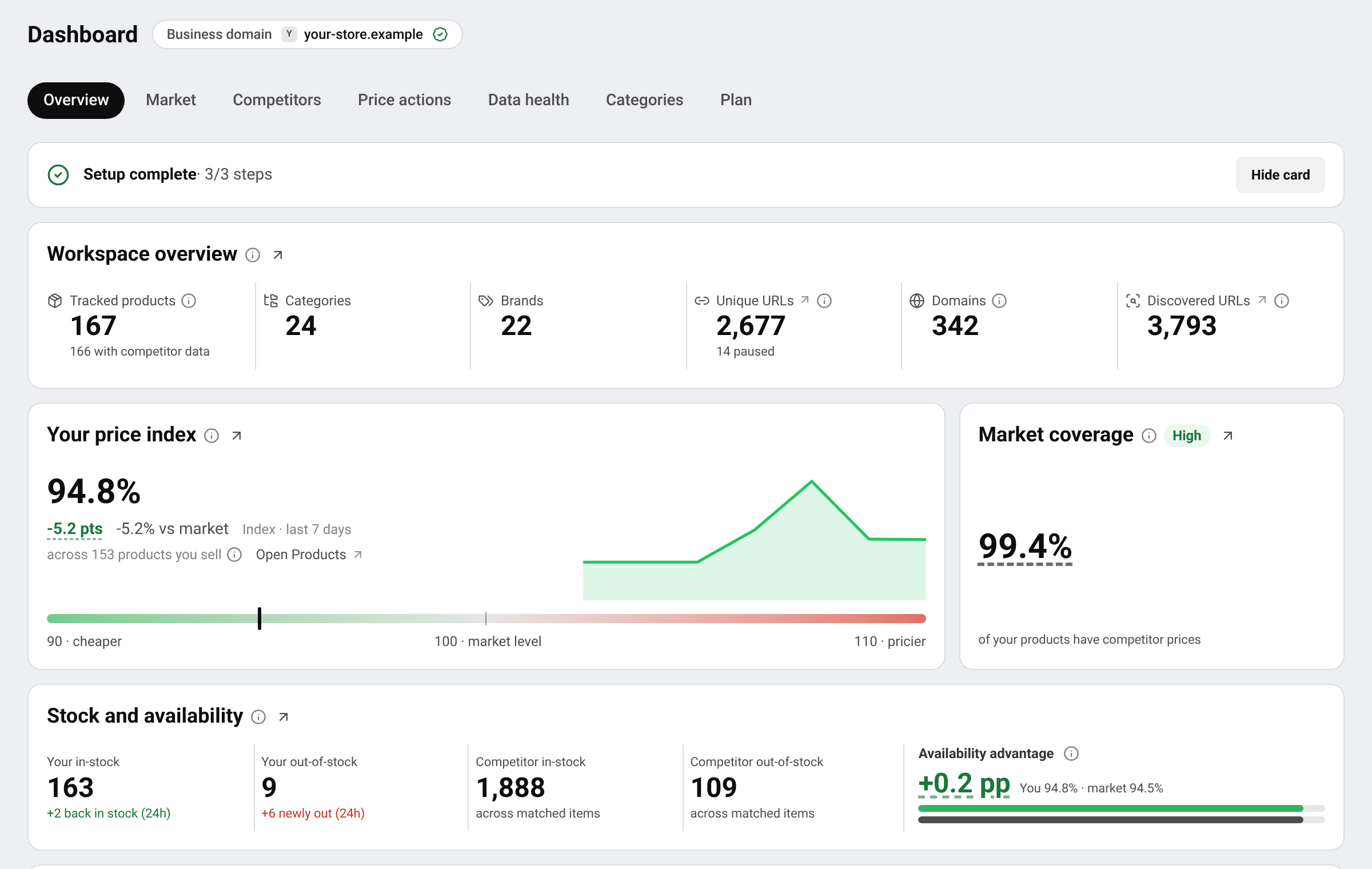
- Overview: what you track (Workspace overview), your price index and market coverage, and Stock and availability.
- Market: Price movements, the Market price trend, Price index trend and Market position: where your prices rank among the sellers of each product.
- Competitors: Key competitors, Competitor pressure and how strong your store is compared with the stores you track.
- Price actions: Pricing opportunities and suggested prices. See Use Smart Price suggestions.
- Data health: URL health and Reported URL issues. Links that stopped giving prices show up here. See Fix broken and redirected links.
- Categories: your price index by category and brand, so a weak average can be traced to the part of your range causing it.
- Plan: Plan and usage: how much of your plan you are using.
Reading a card
- Hover over the ⓘ next to a title or a number to see what it means and how it is counted.
- The ↗ arrow opens the page behind the number, for example the products it counts, already filtered.
- Some cards have a time switch: Last 24 hours, Last 48 hours or Last 7 days.
Tip New to price index or price position? Read Understand your price index and price position first. Most of the dashboard builds on these two ideas.
Arrange the cards
Move your mouse over a card’s title to see its buttons:
- Pin to top: keeps the card near the top of its section, even on a quiet day. Press Unpin to undo.
- Hide for 24 hours: hides the card. It comes back by itself the next day.
- Quiet cards are folded away at the end of a section. Press the line that offers to show them.
Hidden cards are listed under the Hidden button at the top of the page. Press Restore on a card, or Restore all. These choices only change your own view. Your teammates keep theirs.
Questions
Why are the cards empty?
The dashboard needs prices to compare. Add products with competitor links and your own store’s link, then wait for the first prices. See Prices are not showing yet.
Some cards show a lock. Why?
That card is not part of your current plan. See what each plan includes on the pricing page.
Related guides
Still stuck?
Open Support in the app and our team will reply there. You can also email our support team; the address is at the bottom of every page.
 English
 ไทย
 Tiếng Việt
 한국어
 日本語
 简体中文
 Français
 Deutsch
 Русский
 Italiano
 Polski
 Español