
Products and competitor links
Find new competitor pages automatically
You do not have to hunt for every competitor page yourself. BlackAha looks for pages that sell the same product and shows them to you. Nothing is added on its own: you review each page and choose what to track.
Before you start
- A product with a clear name. A product code and GTIN help too. See Add a product by hand.
Find pages for one product
Open discovery
In Products, press Discover URLs on the product. A number next to the button means BlackAha has already found pages for it.
Review the list
The Discovered tab shows pages found so far. Each page shows its store, title and how strong that store is, so you can tell a big retailer from a small one.
Search for more
Press Search the web for more URLs… to run a fresh web search. It can take a moment.
Add the right pages
Press Add on a page to start tracking its price. To add several at once, select them and press Add to product.
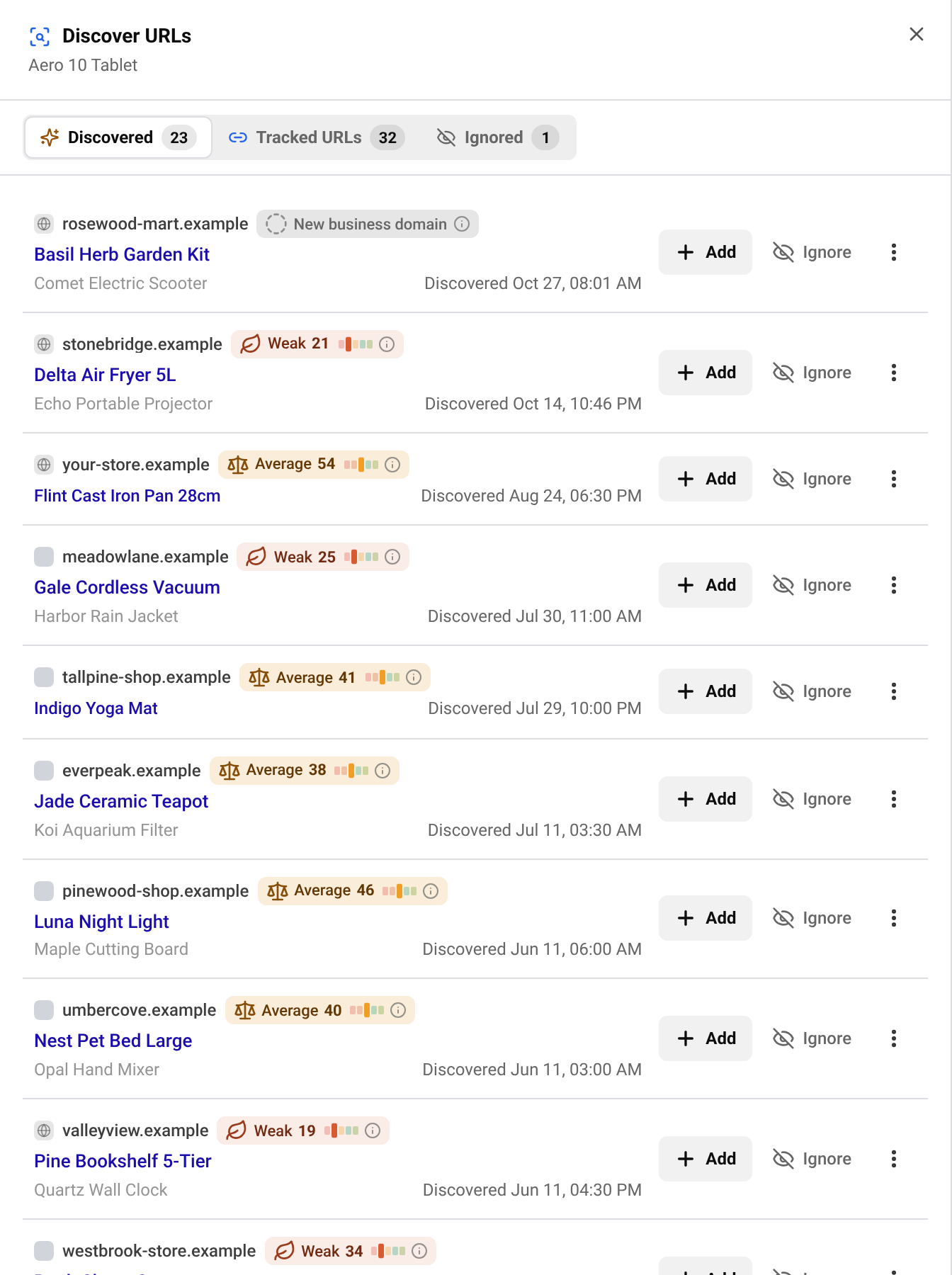
The window has three tabs: Discovered, Tracked URLs (pages you already track for this product) and Ignored. A store marked New business domain has no strength score yet.
Tip Open a page before you add it and check that it is the very same product, in the same size or version. A wrong page gives a wrong price comparison.
Hide pages and stores you do not want
- Press Ignore on a page to move it to the Ignored tab. It will not be suggested again for this product. Press Restore to bring it back.
- To hide a whole store, open the menu on one of its pages and choose Ignore this domain for this product, or Ignore this domain for all products. Useful for marketplaces, price comparison sites or stores in another country.
- Changed your mind about a store? Find it under Ignored domains and press Unignore.
See what was found for all products
BlackAha keeps looking in the background. To review its finds for every product in one place, go to URL DashboardURLs from competitors.
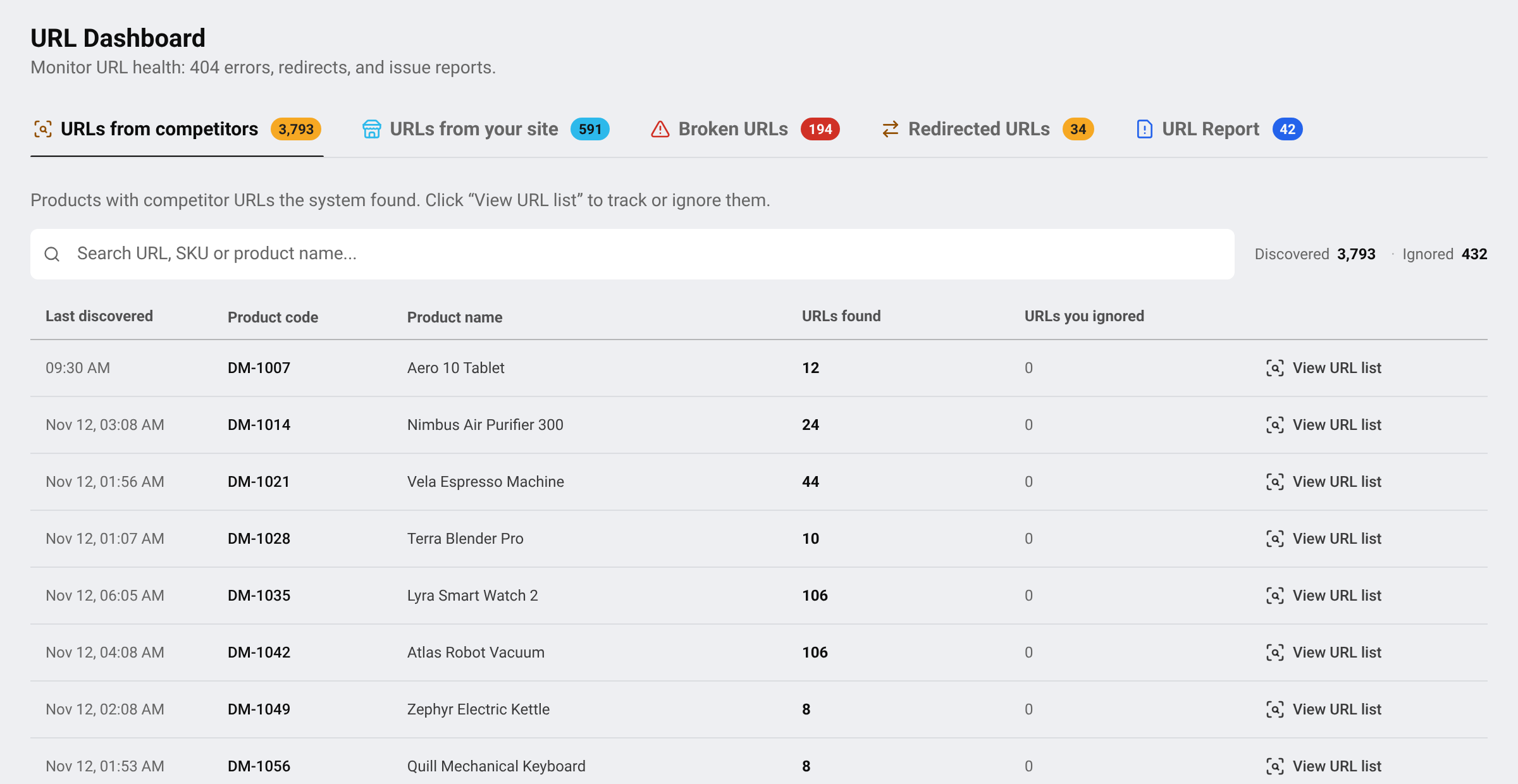
- Each row is one product, with the number of pages found and when the last one was found.
- Press View URL list to open the same review list as above for that product.
You can also get a notification when new pages are found. See Get price change notifications.
Pages marked for review
A page marked Needs review is no longer listed on the competitor’s website. The product may be sold out for good, or the page may be gone. Open it and check before you track it.
Questions
Why are no pages found?
The product name may be too general or too unusual. Use the name customers search for, and add the brand and GTIN. Small or new stores are found less often, so add those pages by hand.
Does discovery add pages without asking me?
No. Pages are only suggested. Nothing is tracked until you press Add.
Is web search included in my plan?
It depends on the plan. If a lock appears, see what each plan includes on the pricing page.
Related guides
Still stuck?
Open Support in the app and our team will reply there. You can also email our support team; the address is at the bottom of every page.
 English
 ไทย
 Tiếng Việt
 한국어
 日本語
 简体中文
 Français
 Deutsch
 Русский
 Italiano
 Polski
 Español