
Dashboard and reports
Compare yourself with each competitor
The competitor report puts every store you track in one list. For each one you see how many of your products it sells, whether it is generally cheap or expensive, and how often it beats your price.
Before you start
- Products with competitor links. See Add a product by hand.
- Your store’s web address saved as the business domain. Without it, BlackAha cannot compare stores with your prices.
The list of stores
Go to ReportsDomain. Each card is one store (BlackAha calls it a business domain). Your own store is marked with a check mark.
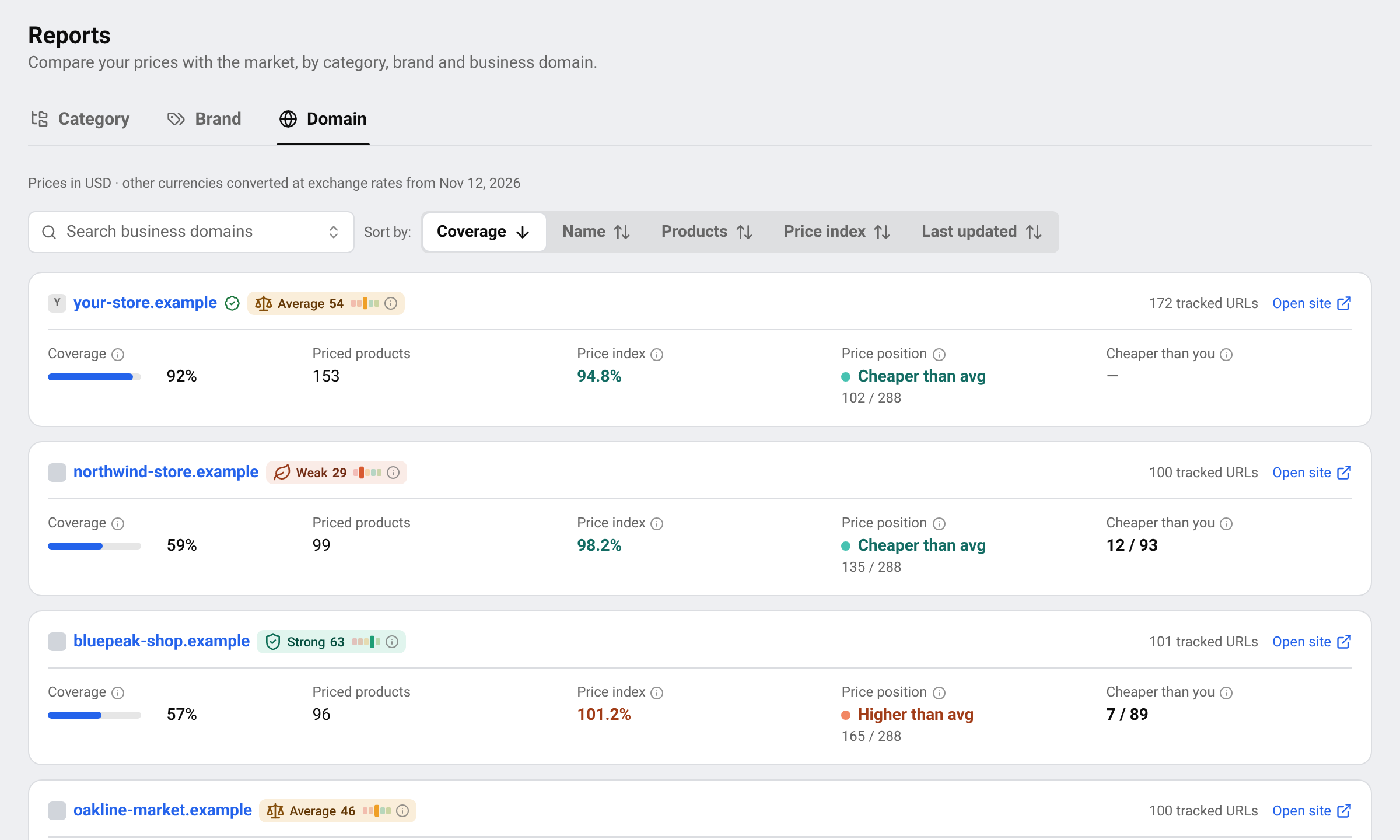
- Coverage: Share of these products that this business domain also sells.
- Priced products: how many of your products have a current price on this store.
- Price index: This business domain’s average price as a percentage of the market price, across all of your products it has a price for. 100 = same as the market, under 100 = cheaper, over 100 = more expensive.
- Price position: where the store ranks when all stores are lined up by price.
- Cheaper than you: Products this business domain sells cheaper than you, out of the products you both have a price for.
The badge next to the name is the store’s strength. Hover over it to read more. See Domain strength and ads status.
Sort the list by Coverage, Name, Products, Price index or Last updated. Open site opens the store’s website in a new tab.
One competitor in detail
Click a store’s name to open its report.
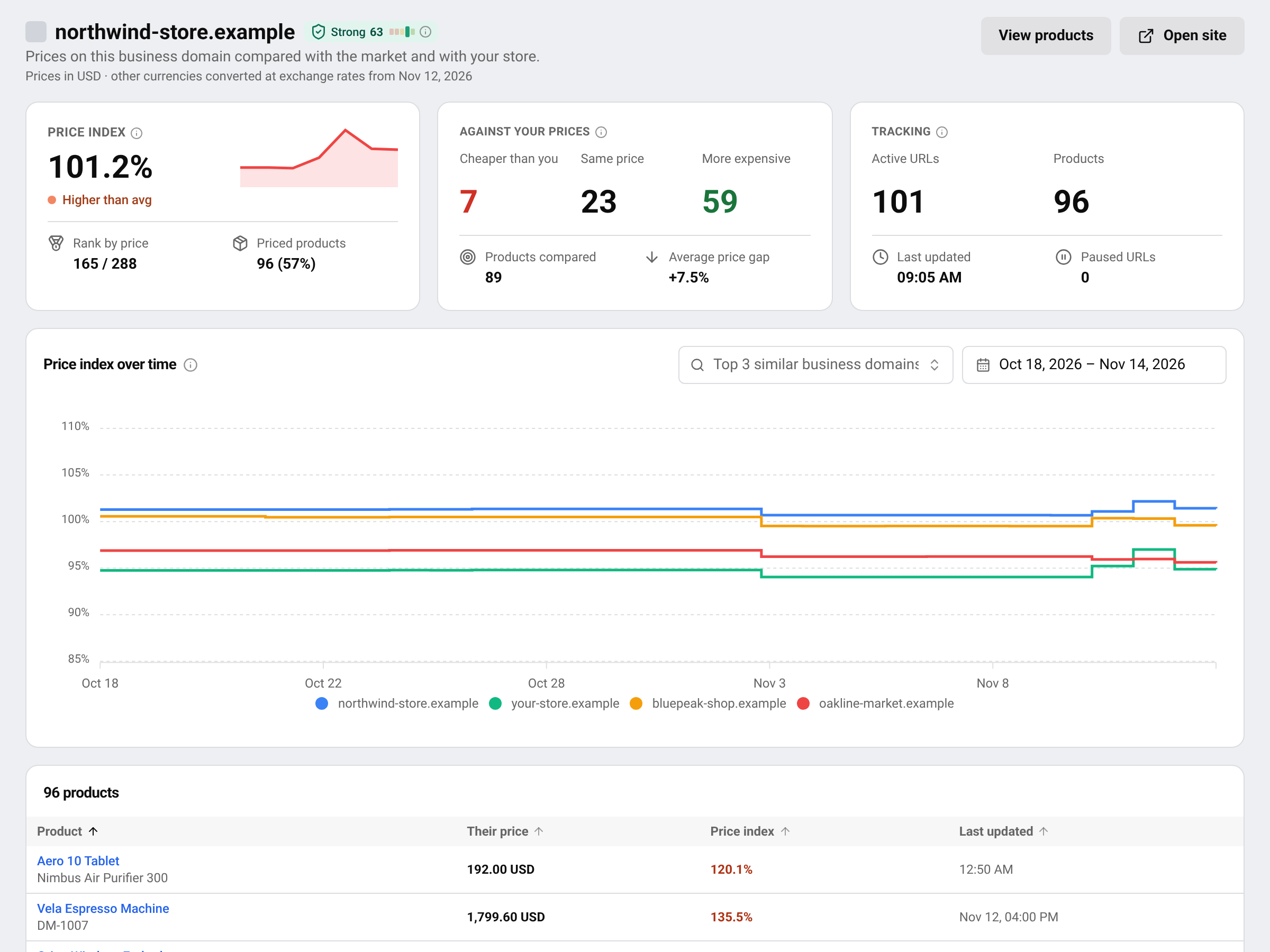
- Price index and Rank by price: how the store prices compared with the market.
- Against your prices: Products where both you and this business domain have a current price, compared one by one. You see how many are Cheaper than you, at the Same price or More expensive, and the Average price gap.
- Tracking: URLs you track on this business domain and when they were last updated.
- Price index over time: compare this store with others over a time range you choose.
- The product table at the bottom lists Their price and the price index for every product, with the last update.
Press View products to open your product list filtered to this store.
Ways to use it
- Find your real rivals: stores with high coverage sell most of what you sell.
- Spot the price setter: a store with a low price index and many products cheaper than you is likely the one customers compare you with.
- Watch a store over time: a falling line on the chart often means a sale or a price war has started.
Tip Want to react to one competitor’s prices automatically? Use that store in a pricing rule. See Create a pricing rule.
Questions
A store shows no price index. Why?
It has no in-stock price for your products right now, or its first prices are still being collected.
Why does a store’s line move when its prices did not change?
The index compares the store with the market. When other stores change their prices, the market moves, and so does the line.
How do I add a competitor to this report?
Add a link from that store to one of your products. It then appears here. See Add, pause and remove competitor links.
Related guides
Still stuck?
Open Support in the app and our team will reply there. You can also email our support team; the address is at the bottom of every page.
 English
 ไทย
 Tiếng Việt
 한국어
 日本語
 简体中文
 Français
 Deutsch
 Русский
 Italiano
 Polski
 Español