
Products and competitor links
Add, pause and remove competitor links
Each link on a product is one store page whose price BlackAha checks. This guide shows how to look after those links over time: add new ones, pause or remove the ones you no longer need, and keep the product’s details up to date.
Before you start
- At least one product. See Add a product by hand.
Where to find a product’s links
There are two places, and both offer the same actions:
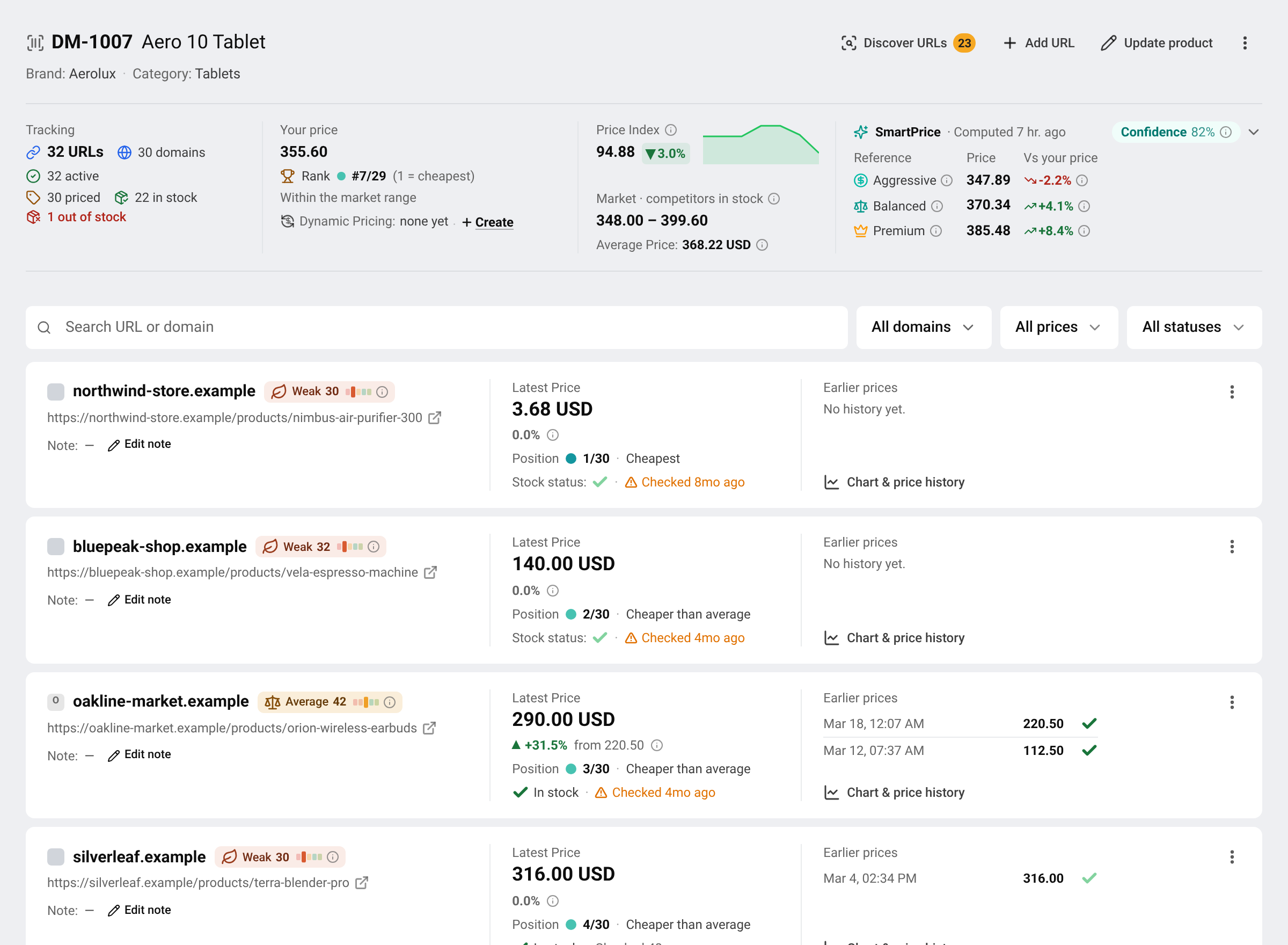
- Products: every product shows a table of its links, with the current price, the change, stock and the last check.
- The product page: press View on a product to open it. Each link gets its own card with its latest price and earlier prices.
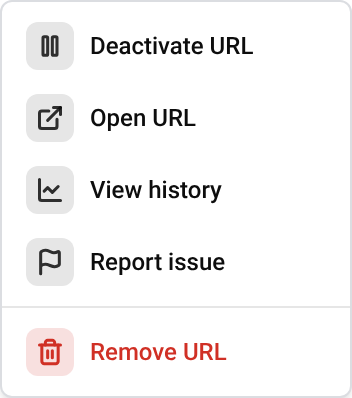
Every link has a menu (the ⋮ button at the end of its row). That menu holds all the actions below.
Add a link
Start
Press Add URL on the product.
Paste the address
Paste the full address of the product’s page on the other store, starting with https://, then press Save.
The link shows Coming soon until its first price arrives, usually within a few hours. If it shows No result yet for a long time, use Report this URL. See Report a wrong price.
Pause a link
Pause a link when you want to stop checking it for a while, but keep its price history. For example, when a competitor takes the product off sale for a season.
Pause
Open the link’s menu and choose Deactivate URL. The link shows Paused and is no longer checked.
Resume
Open the same menu and choose Activate URL. Checking starts again and the history continues.
Tip Paused links are left out of the market average and of your price position. That way an old price does not distort your reports.
Remove a link
Remove a link when the page is wrong or you will never need it again. Open the link’s menu, choose Remove URL and confirm.
Important Removing cannot be undone. If no other product uses the link, it is deleted from your workspace and its price history is lost. If you add it again later, its history starts over. Not sure? Pause it instead.
Add a note to a link
Notes help your team remember things such as “price includes shipping” or “official reseller”. In the product list, click the Note cell of a link and type. On the product page, press Edit note, type, then press Save note.
Edit or delete a product
Edit the details
Open the product and press Update product. Change the name, code, category, brand, GTIN, image or note, then press Save changes.
Delete the product
In the product list, open the product’s menu and choose Delete, then confirm.
Important Deleting a product removes it together with all of its price history. This cannot be undone.
Questions
A competitor moved the product to a new address. What do I do?
BlackAha notices most moves by itself. See Fix broken and redirected links.
Can I see a link’s past prices?
Yes. Choose View history in the link’s menu. See Read a product’s price history.
Related guides
Still stuck?
Open Support in the app and our team will reply there. You can also email our support team; the address is at the bottom of every page.
 English
 ไทย
 Tiếng Việt
 한국어
 日本語
 简体中文
 Français
 Deutsch
 Русский
 Italiano
 Polski
 Español