
Smart Price and automatic pricing
Create a pricing rule
A rule set tells BlackAha how to price a group of products, for example “stay 2% below the cheapest competitor, but never under my minimum price”. BlackAha calculates the new price whenever competitor prices change. With a connected store, the new price can be sent to your shop automatically.
Before you start
- Your store’s web address saved as the business domain. Rules price your products against it. See Change your store address and currency.
- Your own store’s page linked to the products you want to price, so BlackAha knows your current price.
- Owner or admin rights in the workspace.
Start a rule set
Open Dynamic pricing
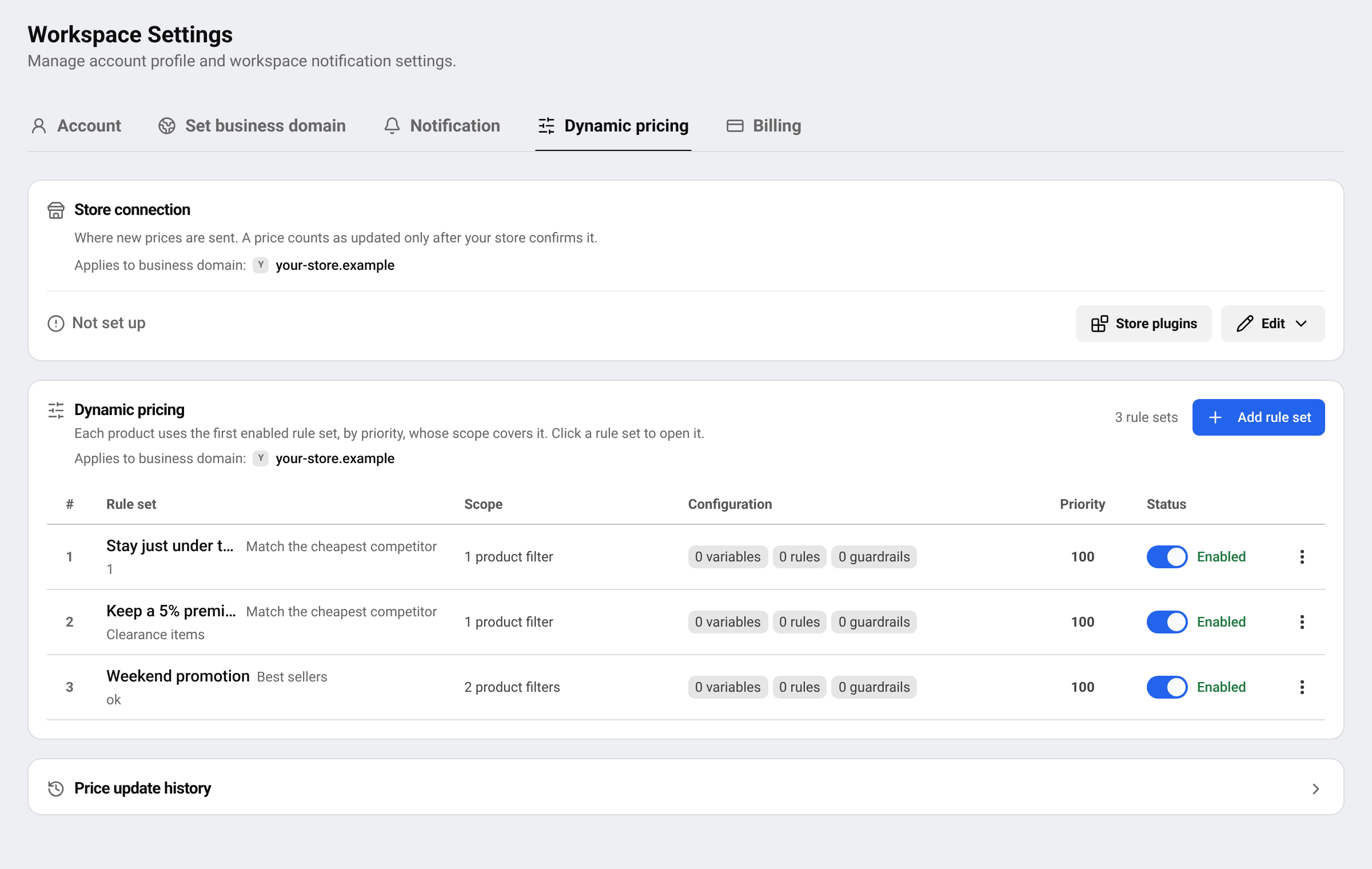
Go to SettingsDynamic pricing and press Add rule set.
Name it
Give it a Name you will recognise later. The Description is optional.
Set the priority
Lower numbers run first. If a product falls under several rule sets, only the first enabled one prices it.
Tip You can also start from a product: on its card, next to Dynamic Pricing:, press Create. You can then add the product to an existing rule set or create one just for it.
Step 1: Choose the products
Under Scope, add one or more filters on Category, Brand or Product code (SKU). For example: category is one of Shoes. Press Add filter for more filters, and choose whether All conditions are true or At least one condition is true.
Step 2: Say when and how to change the price
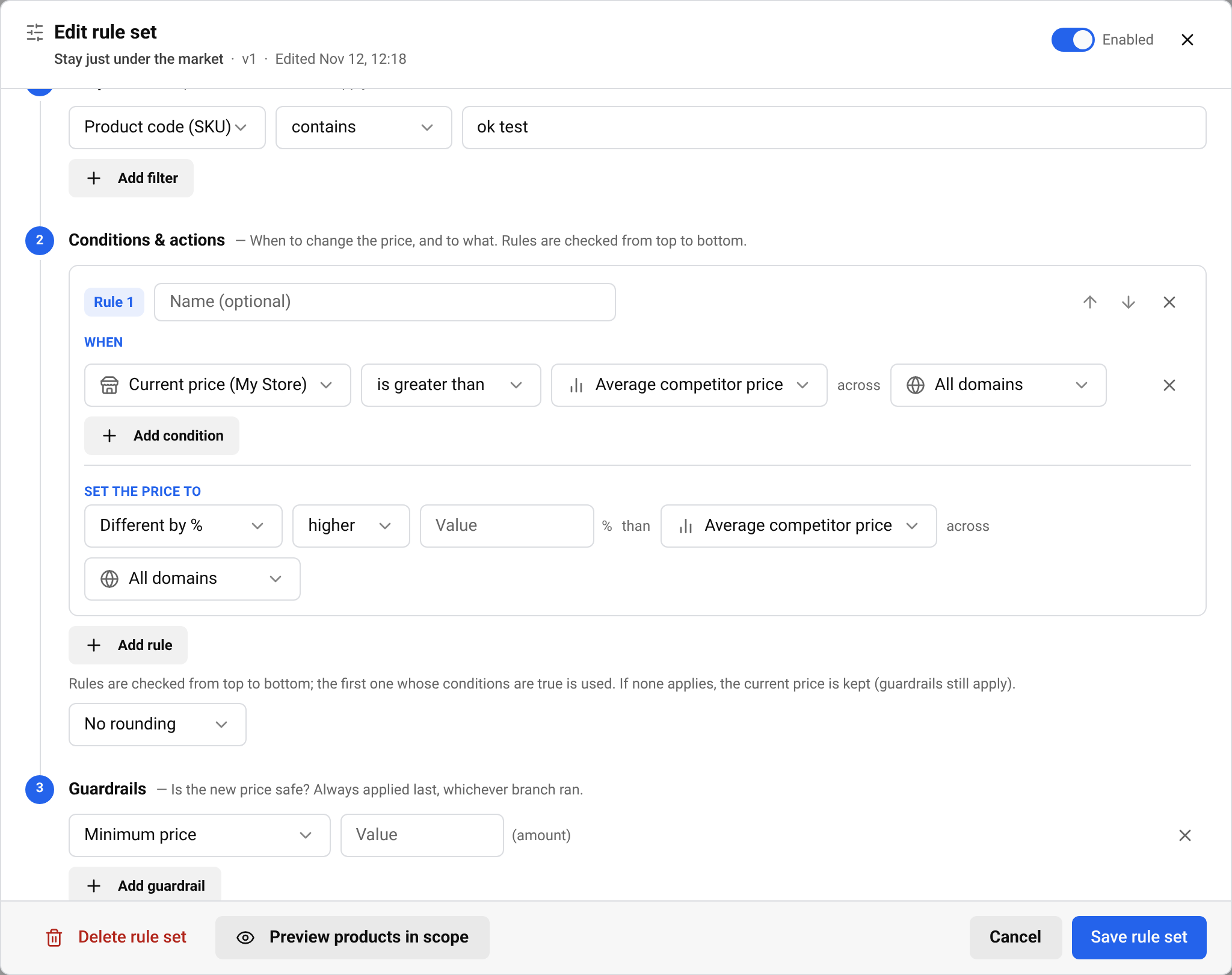
Under Conditions & actions, press Add rule. Each rule has two parts:
- When: one or more conditions, such as “Current price (My Store) is higher (%) than Lowest competitor price”. A rule with no condition always applies.
- Set the price to: the new price. Choose Same as, Different by %, Different by amount or A fixed price, and the value it is based on.
Values you can use include your own price, the lowest, highest and average competitor price, the three Smart Price suggestions, and the price of one competitor store you pick.
Rules are checked from top to bottom; the first one whose conditions are true is used. If none applies, the current price is kept (guardrails still apply).
Choose a Rounding option so prices end the way you like, for example rounded to the nearest whole amount.
Step 3: Add safety limits
Under Guardrails, press Add guardrail. Guardrails are always checked last, so a rule can never push a price past them. Useful ones:
- Minimum price and Maximum price: hard floors and ceilings.
- Max decrease vs current (%) and Max increase vs current (%): limit how far the price can move in one step.
- Not below Smart Price and Not above Smart Price: keep the price within a Smart Price suggestion.
Important Always add a minimum price. Without one, a competitor’s mistake or clearance sale could pull your price down too far.
Preview, save and apply
Preview
Press Preview products in scope. You see every product the rule set covers, its Current price, the Final price and the reason. Nothing is saved or changed by a preview.
Save
Press Save rule set. The rule set starts working right away if it is Enabled.
Apply now, if you want
With a connected store, open the saved rule set’s preview and press Apply this price now on a product to send its new price at once. Otherwise prices are sent automatically when competitor prices change.
Tip Not finished yet? Press Save draft to keep your work. Draft saved. It stays off until you save it in full. In the rule set list it is marked Draft. When it is ready, open it and press Save rule set.
To send prices to your shop, connect it first. See Connect your store to update prices.
Turn off, edit or delete a rule set
- Use the switch in the Status column to turn a rule set on or off.
- Click a rule set to open and edit it.
- To stop a live rule set while you rework it, save it as a draft and confirm Turn off and save draft. A draft never runs. The products this rule set prices stop being priced by it at once — they move to the next enabled rule set that matches, or keep their current price.
- Use its menu to delete it. Products covered by this rule set will use the next matching rule set. Past results are kept.
If your business domain changes, all rule sets pause until an owner or admin confirms the new address in this tab. Nothing is sent to your store in the meantime.
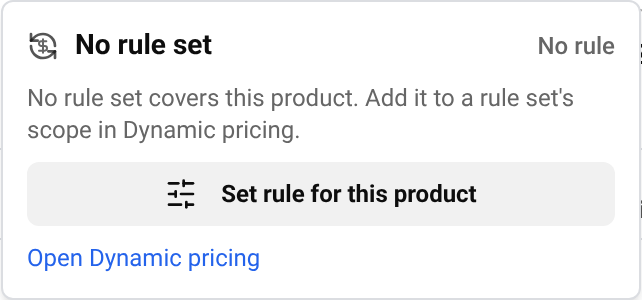
To check which rule set covers a product, click Dynamic Pricing: on the product in Products. If no rule set covers it, the window offers a shortcut to add the product to a rule set.
Questions
Does a rule change my store’s prices immediately?
Only if your store is connected and price sending is turned on. Without a connected store, rules only calculate prices you can see in BlackAha.
Does a draft rule set change any prices?
No. A draft never runs. Its products are priced by the next enabled rule set that matches, or keep their current price, until you save the draft in full.
Why was a product skipped?
The preview shows the reason for each product, for example no in-stock price of your own, or no data for a value the rule uses.
How many rule sets can I create?
The counter next to the add button shows your current use. Limits depend on your plan, see the pricing page.
Related guides
Still stuck?
Open Support in the app and our team will reply there. You can also email our support team; the address is at the bottom of every page.
 English
 ไทย
 Tiếng Việt
 한국어
 日本語
 简体中文
 Français
 Deutsch
 Русский
 Italiano
 Polski
 Español