
Dashboard and reports
Compare prices by category and brand
Looking at one product at a time is slow. The category and brand reports group your products, so you can see in one glance whether you are cheaper or more expensive than the market for a whole range, and which store sets the lowest prices.
Before you start
- Products with a category or a brand. See Add a product by hand.
- Your store’s web address saved as the business domain, so BlackAha knows which prices are yours. See Set up your workspace.
Open the reports
Go to Reports. The page has three tabs: Category, Brand and Domain. This guide covers the first two. The third is explained in Compare yourself with each competitor.
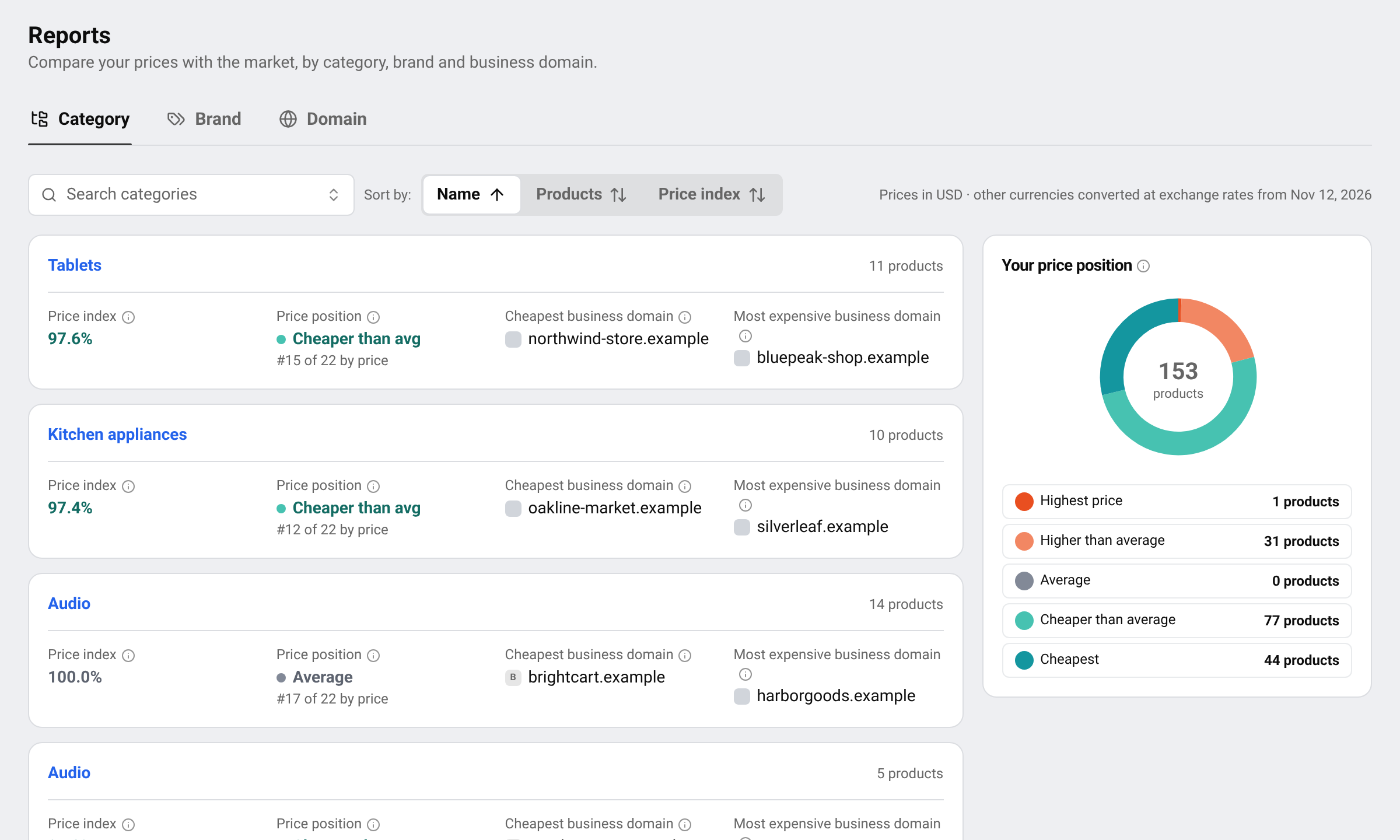
Each category or brand gets one card. Search for one by name, or sort the cards by Name, Products or Price index.
Read a card
- Price index: Your average price as a percentage of the market average. 100 = the same as the market, under 100 = you are cheaper, over 100 = you are more expensive.
- Price position: which band your prices fall in, from Cheapest to Highest price, and your place among all stores when they are lined up by price.
- Cheapest business domain and Most expensive business domain: the stores with the lowest and the highest average price for these products.
On the side, Your price position counts how many of your products fall into each price band across the whole workspace.
Tip The line under the tabs says which currency the report uses. Prices in other currencies are converted with the latest exchange rates. See Change your store address and currency.
Look closer at one category or brand
Click the name on a card to open its detail page.
- Your price index, with the change against 7 days ago and your rank among all stores.
- Price index over time: one line per store. Choose which stores to compare and the time range above the chart.
- A table of every store that sells these products, with its Business domain strength, Coverage, Price index and Price position. Click a column title to sort.
Each line is a price index: that business domain’s average price divided by the market price for the same products, where 100 = level with the market. The market price is built from every tracked URL for those products, so a line moves when that domain changes its prices and also when other sellers reprice. A line can rise or fall while the domain’s own prices stay the same.
Press View products to jump to the product list, already filtered to this category or brand.
Rename a category or brand
On the detail page, press Edit name, type the new name and press Save. Every product in that category or brand gets the new name at once.
Questions
What does a price index of 95 mean?
On average your prices are 5% below the market for these products. 100 means level with the market, above 100 means more expensive. See Understand your price index and price position.
Why is there no price index?
BlackAha needs your own price and at least one competitor price for the same product. Add your store’s page to your products, and check that your business domain is set.
Related guides
Still stuck?
Open Support in the app and our team will reply there. You can also email our support team; the address is at the bottom of every page.
 English
 ไทย
 Tiếng Việt
 한국어
 日本語
 简体中文
 Français
 Deutsch
 Русский
 Italiano
 Polski
 Español