
Smart Price and automatic pricing
Check automatic price updates
When your store is connected, BlackAha keeps a record of every price it sends. A price only counts as updated once your store confirms it, so the history tells you exactly what your shoppers now see.
Before you start
- A connected store. See Connect your store to update prices.
- At least one enabled pricing rule. See Create a pricing rule.
Open the history
Go to SettingsDynamic pricing and open Price update history at the bottom of the page. Each line shows the Product, the Price, the Status, the Source and the Time. Use All results to show only one kind of result.
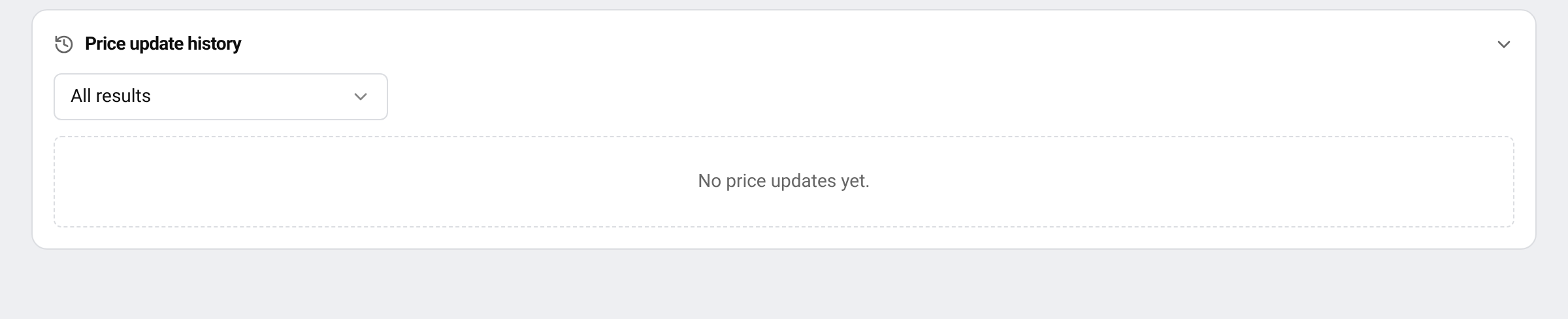
Until your store is connected and a rule set sends its first price, the list shows No price updates yet.
- Updating: the price was sent and BlackAha is waiting for your store to confirm it.
- Updated: your store confirmed the new price.
- Failed: the store did not apply the price. The Detail column says why.
Automatic means a rule sent the price after a competitor’s price changed. Manual means someone sent it by hand.
On each product
The Dynamic Pricing: line on a product card shows which rule set prices it and the last update sent to your store. To send the rule’s current price right away, use Send update to store.
You also get a notification when a store price update succeeds, fails or is not confirmed in time. See Get price change notifications.
Why a price was not sent
Sometimes BlackAha decides not to send a price. The message tells you the reason:
- The rule keeps the current price
- The store already has this price
- No rule applies to this product
- Another rule set prices this product, so this price would be replaced
- This rule set is turned off — turn it on to apply its price
- No current store price
- Your store price is in a different currency than your workspace currency, so this price was not sent
- Your business domain changed — confirm it in Dynamic pricing to resume
- An update for this product is already in progress
If updates fail
- Your store did not confirm the new price in time. Check that the store is online and the plugin is active.
- “The secret key in your plugin does not match”: paste the current key into the plugin again, or create a new one. See Connect your store to update prices.
- “The store saved a different price”: the store kept a price other than the one sent. Check the product’s price settings in your store.
Still stuck? Contact support with the product code and the time of the update.
Questions
Can I undo a price update?
BlackAha does not undo prices. Change the price in your store, or adjust the rule so it calculates the price you want.
Why is nothing in the history?
No price has been sent yet. Check that your store is connected, price sending is enabled and at least one rule set is turned on and saved in full (a draft never sends prices).
Related guides
Still stuck?
Open Support in the app and our team will reply there. You can also email our support team; the address is at the bottom of every page.
 English
 ไทย
 Tiếng Việt
 한국어
 日本語
 简体中文
 Français
 Deutsch
 Русский
 Italiano
 Polski
 Español