
Price tracking and history
Track product variants (size, colour…)
One product page often sells several versions of the same item: sizes, colours, capacities. Each version can have its own price. BlackAha spots these variants on the pages you track and lets you choose which ones to follow.
Before you start
- A product with at least one link that has been checked. See Add a product by hand.
Find the variants of a link
When BlackAha finds variants on a page, the link shows a small purple badge with the number of variants, for example “{{count}} variants”. In Products it is in the Note column of the competitor links table; on the product page it sits under the domain name.
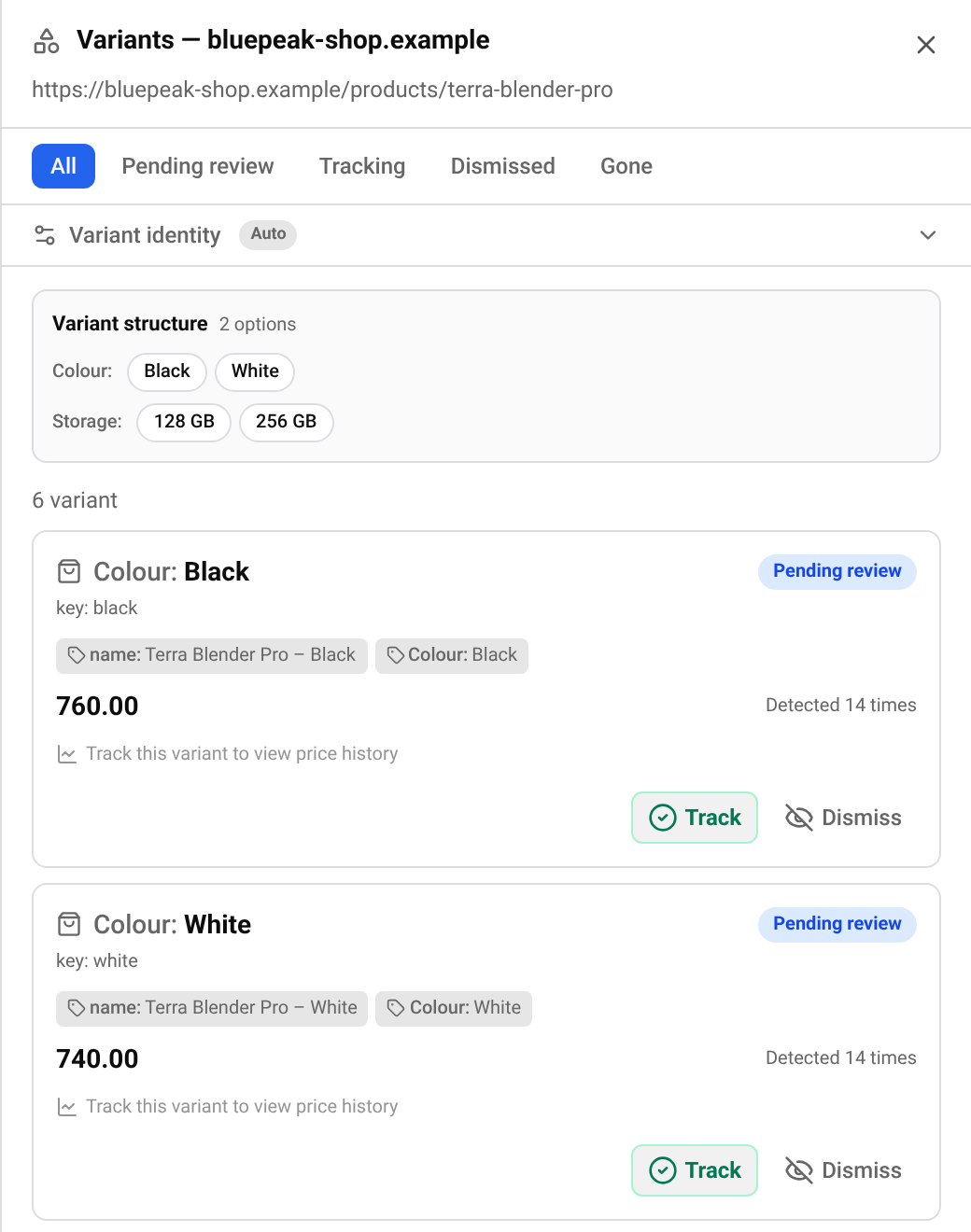
Click the badge. A panel slides in from the right. At the top, Variant structure shows the options found on that page (for example colour and storage). Below it, each variant has its own card with its options, price, status and stock.
Choose which variants to track
Start with new ones
Open the Pending review tab. These are variants BlackAha has found but you have not decided on yet.
Track the ones you sell
Press Track on a variant that matches what you sell. It moves to Tracking, and you can open its price history. Its price is refreshed each time the page is checked.
Dismiss the rest
Press Dismiss on variants you do not care about. Changed your mind? Press Undo.
A variant in Gone is no longer offered on the page. If it comes back, you can track it again.
See a variant’s price history
On a tracked variant, press Show price history. Only tracked variants have a history, so track a variant first if you want to follow its price.
Tip Compare like with like: if you sell the 256 GB version, track the 256 GB variant on each competitor page.
When variants are split the wrong way
BlackAha decides by itself which options make one variant different from another (for example size and colour). This is shown under Variant identity as Auto.
If two different versions are mixed together, or one version is split into many, you can choose the fields yourself: tick the fields that tell variants apart, give them a clear name if you like, and press Save. Press Back to Auto to go back.
Important Changing these fields can change how variants are grouped, and a variant that no longer matches is shown as gone. Change them only if the automatic grouping is clearly wrong.
Questions
Why is there no variant badge on my link?
The page sells only one version, or BlackAha has not found variants on it yet. Variants appear after the page has been checked.
Does tracking a variant use up an extra link?
No. Variants are read from the link you already track, so tracking one does not add a new link.
Related guides
Still stuck?
Open Support in the app and our team will reply there. You can also email our support team; the address is at the bottom of every page.
 English
 ไทย
 Tiếng Việt
 한국어
 日本語
 简体中文
 Français
 Deutsch
 Русский
 Italiano
 Polski
 Español