
Alerts and notifications
Get price change notifications
When a competitor changes a price, or a product goes in or out of stock, BlackAha can tell you. This guide shows how to choose where those messages arrive and when.
Before you start
- At least one product with competitor links. See Set up your workspace.
- For team chats such as Telegram or Slack: access to that chat, to connect it once.
Open the notification settings
Go to the Notification tab
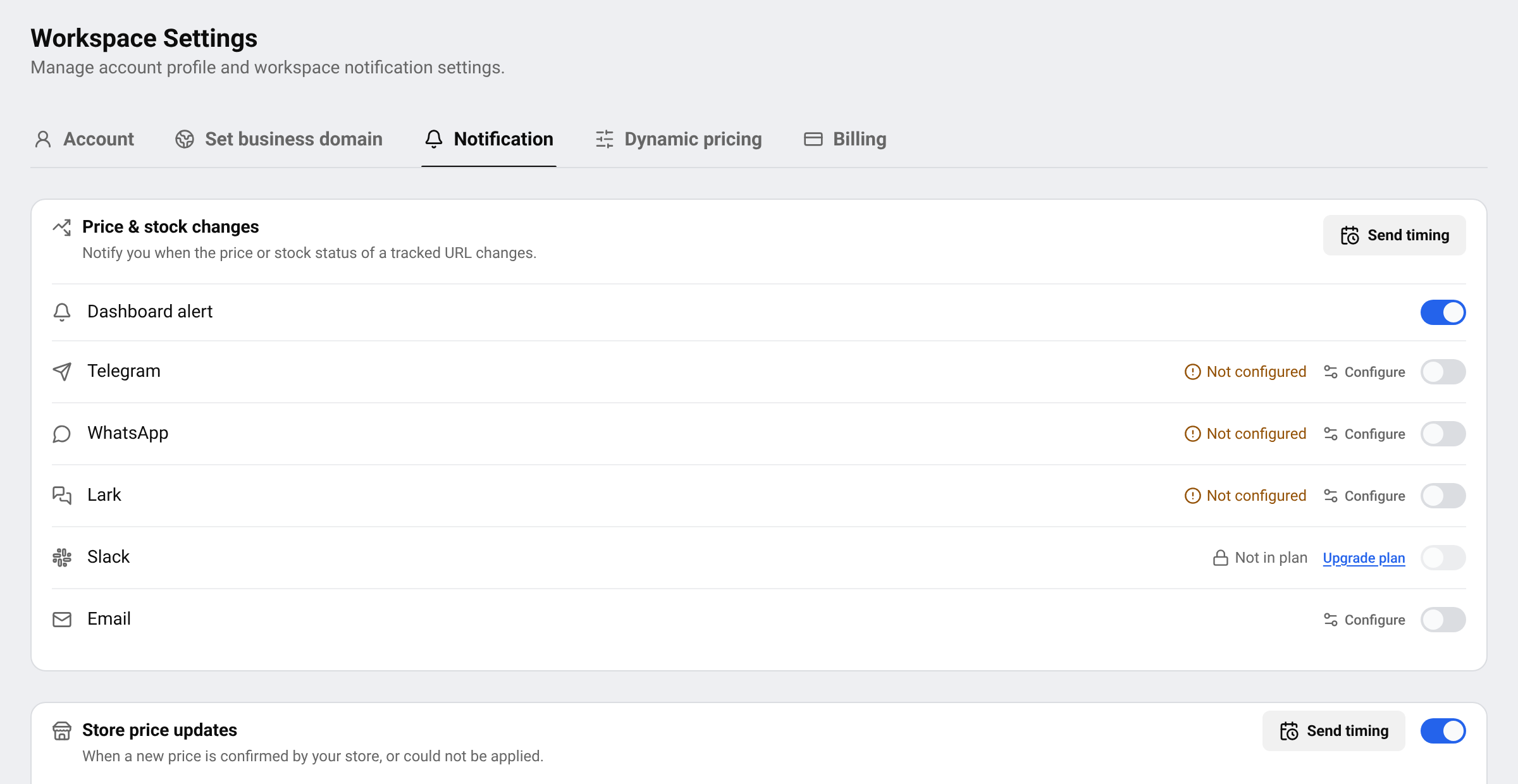
In the menu on the left, open SettingsNotification. Or open it directly.
Find the right card
Price & stock changes is about the pages you track, yours and your competitors’. Store price updates is about your own store, when BlackAha updates a price there for you.
Choose where messages arrive
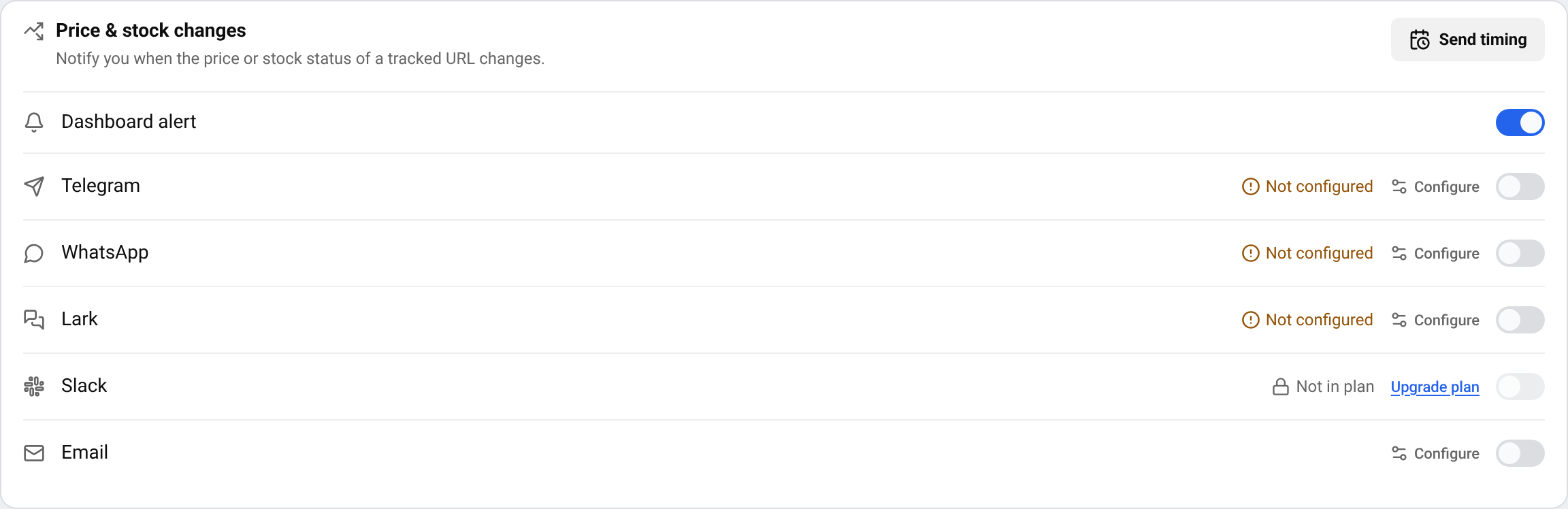
Each card lists the places a message can go. Each place has its own switch, and a switch is saved as soon as you flip it.
- Dashboard alert: the message appears in BlackAha, under Notifications.
- Email: one summary email a day for each member of your team.
- Telegram, WhatsApp, Lark and Slack: a message in a chat your team already uses.
Connect a chat once
A chat marked Not configured needs to be connected first. Press Configure next to it and follow the short instructions in the window that opens. For Telegram, see Send price alerts to Telegram.
Turn the switch on
Turn on the switch for every place that should receive the message. If a chat is not connected yet, the switch opens its connection window instead.
Tip A place marked Not in plan is not part of your current plan. To see what each plan includes, visit the pricing page.
Choose when messages are sent
Open the timing options
Press Send timing on the card.
Pick a timing
Choose Send immediately to hear about each change straight away, or Send daily at hour and pick an hour from 0 to 23 to receive everything together at that time.
Tip Email always arrives as one summary a day, so a busy day does not fill anyone’s inbox.
Read your messages
Messages inside BlackAha are listed under Notifications. Use Unread to see only new ones, open a message to go to the product, or press Mark all read.
A price message tells you the product, the store, the old price, the new price and when the change happened.
If messages do not arrive
- Check that the switch is on, on the right card.
- A place marked Needs attention has a connection problem. Press Configure, enter the details again and send a test.
- If you chose a daily time, messages wait until that hour.
- Email is sent once a day, never straight away.
Questions
Which changes create a message?
A change in the price, or in the stock status, of any page you track. Price updates in your own store have their own card.
Can I receive messages in several places?
Yes. Turn on as many places as you like. Each one receives the same message.
Why do I only get one email a day?
Email is sent as a daily summary on purpose, so frequent price changes do not flood your inbox. Use the app or a chat for instant messages.
Related guides
Still stuck?
Open Support in the app and our team will reply there. You can also email our support team; the address is at the bottom of every page.
 English
 ไทย
 Tiếng Việt
 한국어
 日本語
 简体中文
 Français
 Deutsch
 Русский
 Italiano
 Polski
 Español