
Account, team and billing
Update your profile and password
Your account settings hold your name, your username and your password. Your name and username are what other members of your workspace see.
Before you start
- You are logged in. See Create your account and log in.
Change your name and username
Open your account
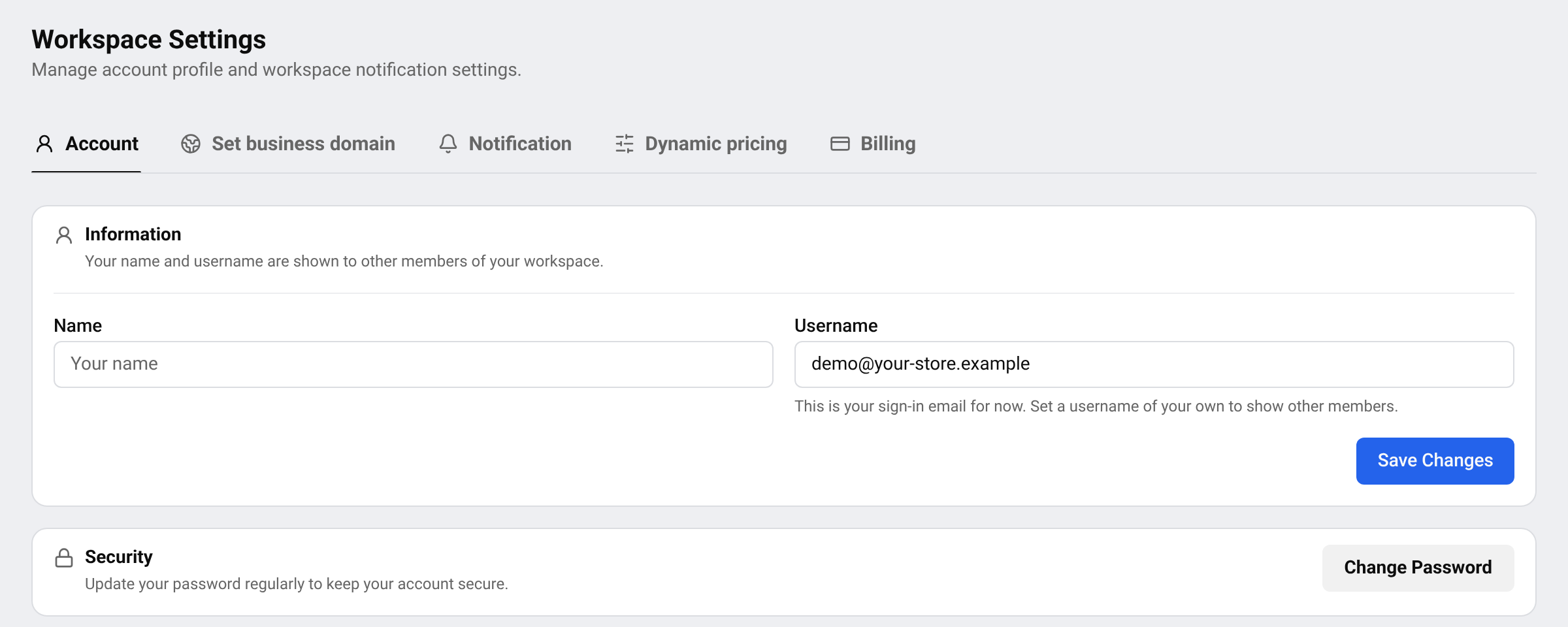
Go to SettingsAccount. You can also open it from the account menu at the bottom of the left menu.
Edit the details
Change Name and Username.
Save
Press Save Changes. A message confirms the update.
Tip Until you choose a username, your sign-in email is used in its place. Set a username if you prefer not to show your email to other members.
Change your password
Open the password window
On the same page, under Security, press Change Password.
Enter your current password
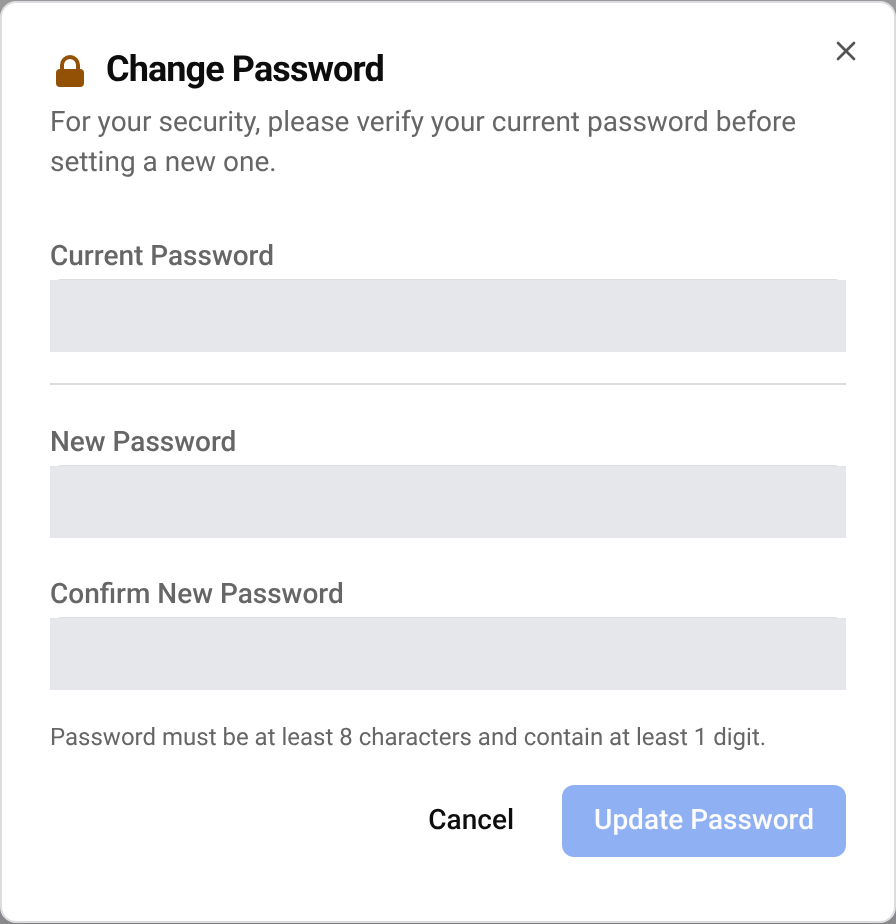
Type it in Current Password. This proves it is really you.
Choose a new password
Type it in New Password and again in Confirm New Password. Password must be at least 8 characters and contain at least 1 digit. It must be different from your current one.
Save it
Press Update Password. You get a confirmation email.
Forgot your current password? Log out and use Forgot your password? on the log-in page. See Create your account and log in.
Questions
Can I change my sign-in email?
Not from the account settings. Contact support if you need to.
I got a password change email I did not expect.
Reset your password right away from the log-in page, then contact support.
Related guides
Still stuck?
Open Support in the app and our team will reply there. You can also email our support team; the address is at the bottom of every page.
 English
 ไทย
 Tiếng Việt
 한국어
 日本語
 简体中文
 Français
 Deutsch
 Русский
 Italiano
 Polski
 Español