
AI Agent (MCP)
Connect an AI assistant (MCP)
With AI Agent (MCP) you can ask Claude, ChatGPT or another AI assistant about your products, competitor prices and reports, right in the chat. You connect it once with a personal address, then choose on BlackAha what it may do.
开始之前
- An AI assistant that can add a custom connector (remote MCP server). Some assistants offer this only on certain plans — the note under each assistant in BlackAha tells you.
- 在 BlackAha 中打开 SettingsAI Agent (MCP)。 If you see Your plan does not include AI Agent (MCP),请查看 价格页面 ,了解哪些套餐包含此功能。
Open the AI Agent (MCP) tab
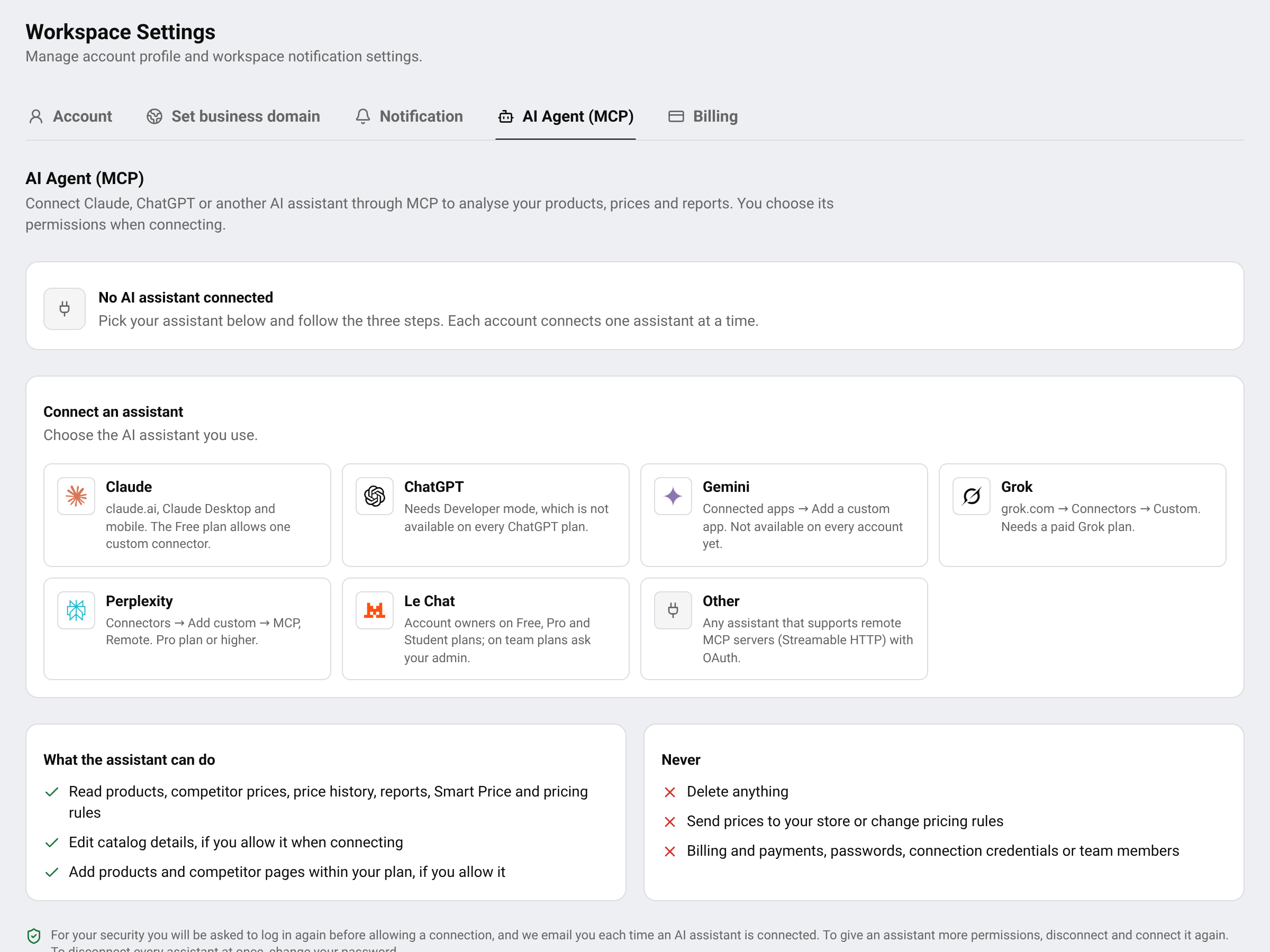
The tab shows whether an assistant is connected, the assistants you can choose from, and what an assistant can and can never do in your workspace.
Connect your assistant
Choose your assistant
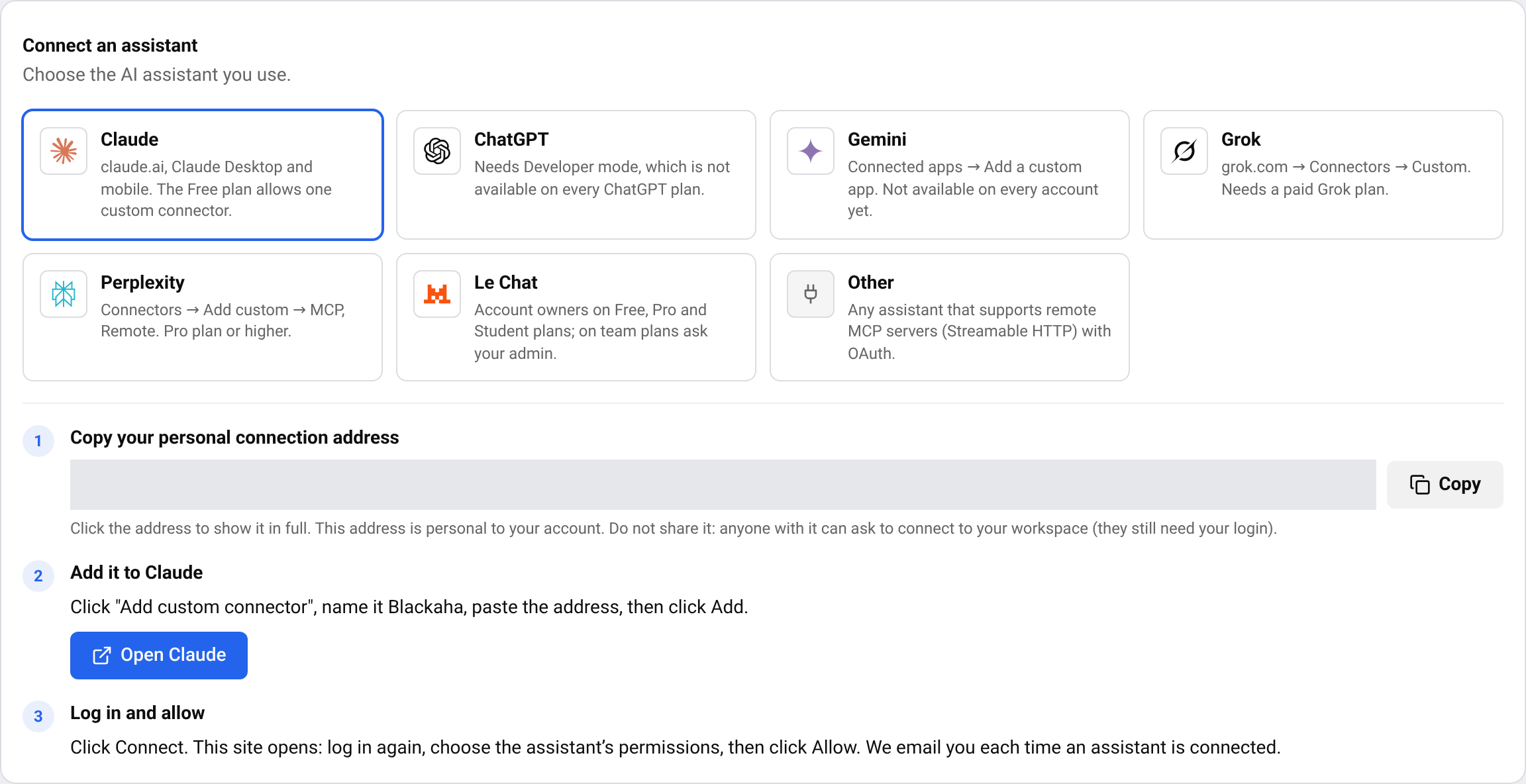
在 Connect an assistant, click Claude, ChatGPT, Gemini, Grok, Perplexity, Le Chat or Other。 The three steps for that assistant appear below.
Copy your personal address
在 Copy your personal connection address,点击 Copy。 The address is personal to your account: do not share it.
添加到您的助手
Press the button that opens your assistant and add a custom connector named Blackaha (no space) with the address you copied. The exact menu is written in step 2 on the screen — for example, in Claude: click “Add custom connector”, name it Blackaha, paste the address, then click Add.
登录并允许
In your assistant, click Connect. BlackAha opens: log in again, choose the permissions and how long access lasts, then press Allow access。 We email you a notice each time an assistant is connected.
提示 ChatGPT needs Developer mode, which is not available on every ChatGPT plan. Gemini custom apps are not available on every account yet.
Choose what the assistant may do
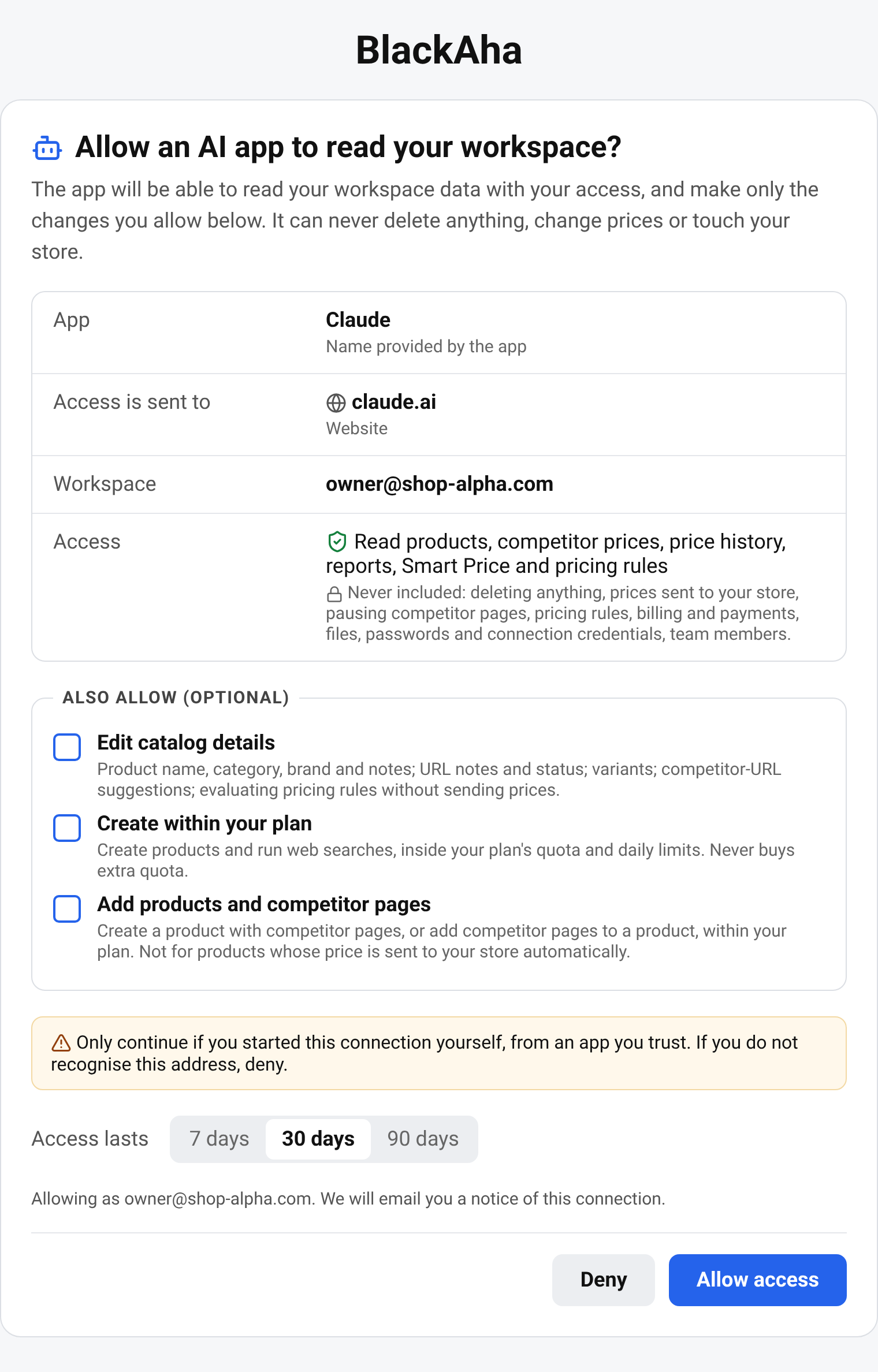
Reading is always included: Read products, competitor prices, price history, reports, Smart Price and pricing rules. Under Also allow (optional) you can also tick:
- Edit catalog details — product names, categories, brands and notes, variants and competitor suggestions.
- Create within your plan — new products and web searches, within your plan’s limits.
- Add products and competitor pages — start tracking competitor pages, within your plan’s limits.
An assistant can never delete anything, send prices to your store, change pricing rules, or touch billing, passwords or team members. Changes it makes are recorded in your workspace’s audit log.
提示 To give an assistant more or fewer permissions, disconnect it and connect it again.
How long access lasts
When you allow the connection you choose Access lasts: 7, 30 or 90 days. Each account connects one assistant at a time — connecting a new one disconnects the current one.
Disconnect every assistant
更改密码
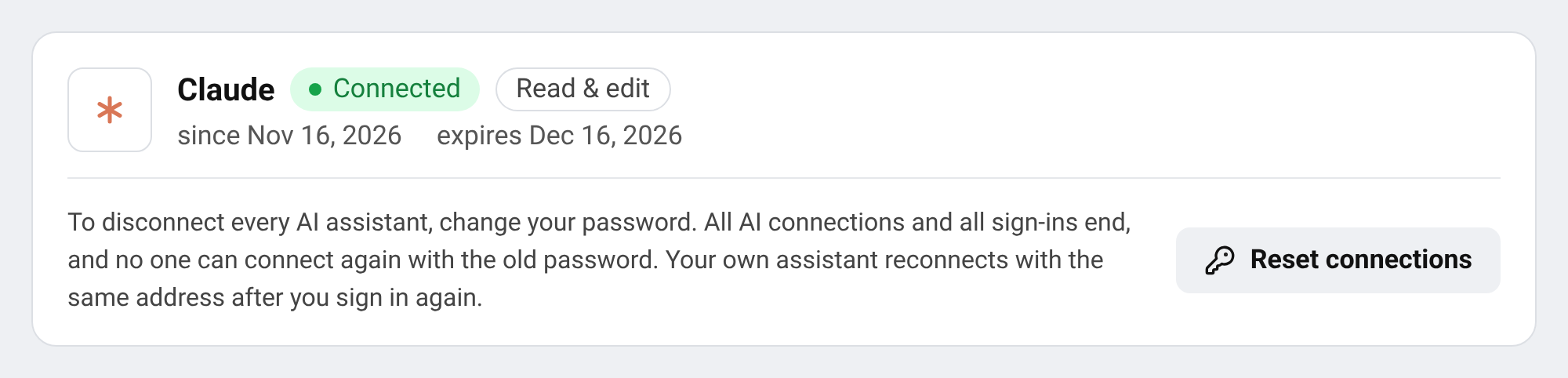
前往 SettingsAccount and change your password. See 更新个人资料和密码。
What happens
Every AI connection and every sign-in ends. Your own assistant can reconnect with the same address after you log in again.
重要 Got a connection email you don’t recognise? Change your password right away, then contact support.
问题
助手可以修改我的价格吗?
No. It never sends prices to your store and cannot change pricing rules. It can preview what your rules would do without saving or applying anything.
Which assistants work with BlackAha?
Claude, ChatGPT, Gemini, Grok, Perplexity and Le Chat, plus any assistant that supports remote MCP servers with OAuth.
Why do I have to log in again?
To protect your workspace, an assistant can only be allowed right after you log in.
相关指南
仍未解决?
打开 支持 (应用内),我们的团队会在那里回复您。您也可以给支持团队发送邮件,邮箱地址在每个页面的底部。
 English
 ไทย
 Tiếng Việt
 한국어
 日本語
 简体中文
 Français
 Deutsch
 Русский
 Italiano
 Polski
 Español