
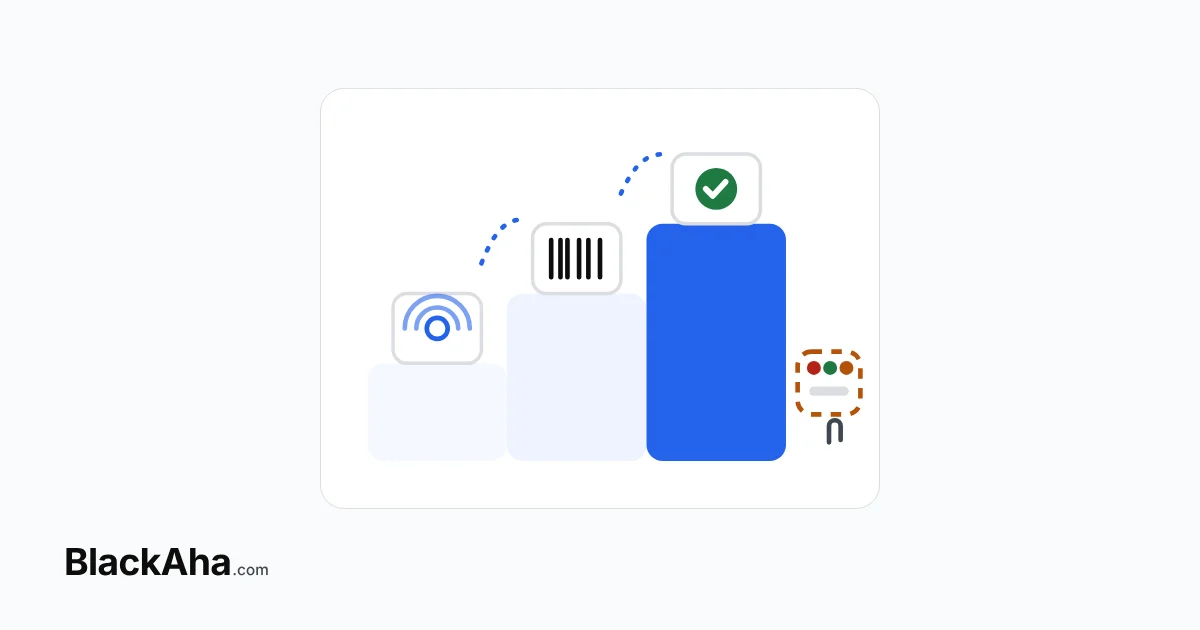
OpenCart competitor pricing works in two stages. First, track the rival pages that sell your products and watch their prices. Then connect the BlackAha extension so your rules update OpenCart prices by SKU. On OpenCart 4, most of the work is getting SKUs and specials ready.
Many small OpenCart shops still check rival prices by hand. That works for ten products, not for three hundred. Prices drift, and you find out late, after a rival has taken the sales or you have sold too cheap for weeks.
Our view: on OpenCart, the hard part is rarely the pricing rule. It is the product data. A missing SKU or an old special can stop an update that looks fine on paper.
Why does OpenCart competitor pricing slip out of date?
Because the checks are manual and the catalog keeps growing. Take a simple scenario. A small OpenCart 4 shop sells bike parts, with a few hundred products. Three rival stores sell many of the same parts.
The owner opens each rival page once a week and copies prices into a sheet. That is hundreds of page visits. Some get skipped. A rival can cut the price of a popular chain on Monday, and the shop notices the next week.
The cost is quiet but real. You either lose sales on your best sellers, or you keep low prices long after rivals have raised theirs.
How do you start tracking rival prices for an OpenCart store?
Start with tracking only. You do not need to change any store price yet. In our scenario, the shop follows these steps:
- Add your products. Let BlackAha find product pages on your own site, upload a CSV file, use a product feed, or add products by hand.
- Find rival pages. Competitor Discovery suggests rival pages that sell each product. You keep the ones that really match, and you can add pages yourself.
- Pick your three rivals. Choose the stores your customers really compare you with. Domain Strength shows how strong each one is in your market.
- Watch for a few weeks. Automatic price tracking records each rival price and stock status. Price Change Alerts tell you when a rival moves.
After a few weeks, patterns show. One rival may follow your prices. Another may cut only a few popular items. This history tells you which products are worth automating first. In our scenario, the shop picks its top sellers.
What must be ready in OpenCart before prices update automatically?
Four things: a supported version, a secure store, unique SKUs and the right currency. Use this checklist before you connect.
- OpenCart version. OpenCart 4, from 4.0.2.0 to 4.1.0.x, with PHP 8.1 or later.
- HTTPS. The store runs over HTTPS on a public domain.
- A unique SKU on every product you want updated. OpenCart requires a Model but not a SKU, so many stores leave SKU empty. Fill it in, and make sure no two products share one.
- Same SKU in both places. The SKU in BlackAha should match the SKU in OpenCart, or the price has nowhere to go.
- Currency. Your store’s default currency matches the prices in BlackAha. Nothing is converted.
- Old specials and discounts. Review the ones you set by hand. A conflicting discount leaves the product untouched.
The SKU step takes longest in most shops. Our checklist for cleaning up products that have a Model but no SKU walks through it. If you still run an older version, read our notes on OpenCart 3 stores and upgrade checks first.
How do new prices reach your OpenCart products?
Through the BlackAha extension for OpenCart. You install it in Extensions → Installer. Then open Catalog → Pricing Updater, click Connect to BlackAha and approve the connection in your BlackAha account.
Next, you write a rule in Dynamic Pricing. The rule decides each new price from rival prices, and guardrails such as a minimum price keep it safe. The extension then applies the result:
- It finds the one product with that SKU.
- It applies the price exactly, to the cent. This is the price a guest pays for one unit, before tax.
- For the default customer group, a price below the regular price becomes the product’s special. A price at or above the regular price ends the special.
- If something is unclear, such as a duplicate SKU, it leaves the product alone and reports why.
- Every result, applied or not, appears in Recent price updates.
Here is an illustrative example in USD. A brake lever has a regular price of $48.00. The lowest rival drops to $46.50. The rule says “$1.00 below the lowest rival”, with a minimum price of $44.00. The new price is $45.50, above the floor, so it becomes the special. The regular price stays $48.00.
Later, the rival goes back up to $50.00. The rule now gives $49.00. That is above the regular price, so the special ends.
Specials, discounts and the regular price interact in ways that can surprise you. See our table of how each OpenCart price type is affected before you automate a whole category.
What still stays manual?
The decisions stay with you. Automation only carries them out. Plan to handle these by hand:
- Which products to automate. Start with best sellers that have clear rival matches. Leave bundles and clearance stock out of the rule’s scope.
- Your floor prices. Only you know your costs. Set a minimum price on every rule.
- Products the extension skipped. Check Recent price updates and fix the reason, such as a shared SKU.
- Product options. Rivals often list each size as its own page, while OpenCart keeps sizes as options on one product. Decide how to compare them before you automate.
- Prices for other customer groups. Specials are handled for the default group. Review wholesale or member prices yourself.
How BlackAha helps
BlackAha.com is a competitor price tracking and pricing tool for online stores. It records rival prices and stock on every tracked page, keeps unlimited price history and alerts you by email, Slack, Telegram, WhatsApp or Lark. Smart Price suggests a price for each product with three strategies: Aggressive, Balanced and Premium.
When you are ready, Dynamic Pricing rules update your OpenCart 4 store on schedule through the extension. No OpenCart core files are changed. If you uninstall it, your prices stay as last applied.
Key takeaways
- Track rival prices first. Automate later, starting with best sellers.
- Every product you want updated needs a unique SKU that matches in BlackAha and OpenCart.
- The extension supports OpenCart 4.0.2.0 to 4.1.0.x, with PHP 8.1 or later over HTTPS.
- A lower price becomes the special for the default customer group. A price at or above the regular price ends it.
- Products with unclear data are skipped and reported, never guessed.
Frequently asked questions
Do I need a developer to automate OpenCart prices?
Usually not. You install the extension, click Connect to BlackAha and approve the connection. The main work is filling in unique SKUs, which you can do in the OpenCart admin.
Can I use the Model field instead of SKU?
No. Products are matched by SKU. If the SKU is empty or shared by several products, the price is not applied, and the reason is reported.
Will automatic updates delete my regular price?
Not when the new price is lower. A lower price is set as the special for the default customer group, and the regular price stays. A price at or above the regular price ends the special.
Can I track rivals before connecting my store?
Yes. Tracking and alerts work on their own. You can watch rival prices for a few weeks before you let any rule change a price.
Want to see how your own products compare? You can try BlackAha with a few best sellers and your three main rivals.
 English
 ไทย
 Tiếng Việt
 한국어
 日本語
 简体中文
 Français
 Deutsch
 Русский
 Italiano
 Polski
 Español