
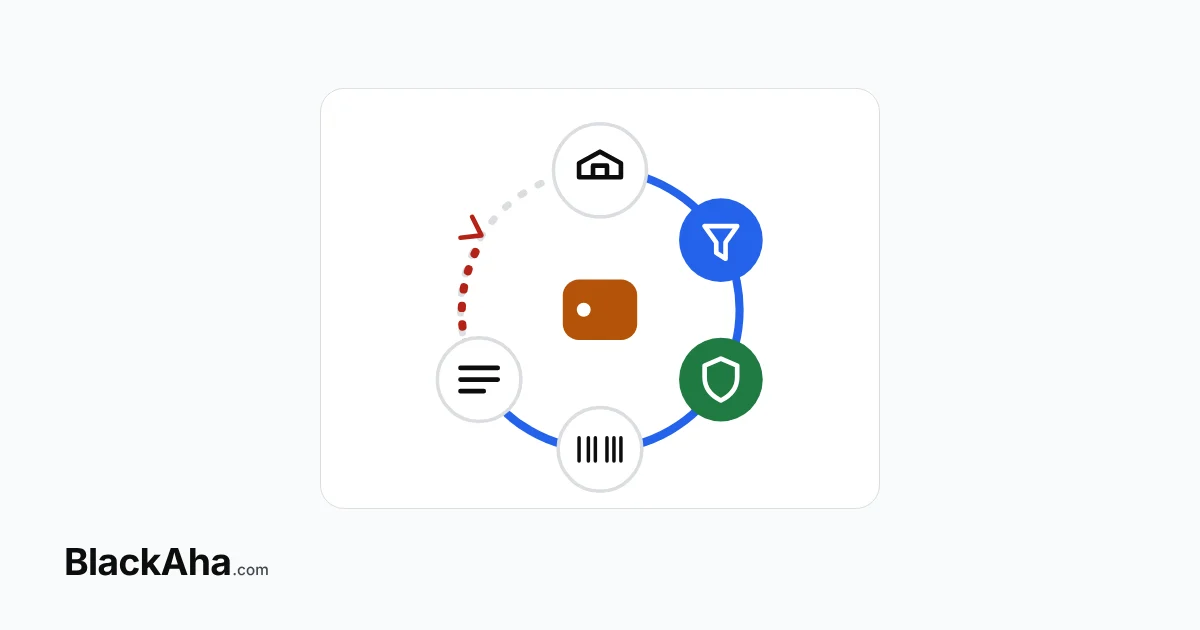
WooCommerce automatic repricing is a loop. A rival’s new price is recorded, your rule turns it into your price, rounding and guardrails adjust it, and a plugin applies it to the product by SKU. The store confirms it and the change is logged. A price below the regular price becomes the sale price.
Most guides describe these parts one by one. Store owners usually ask a simpler question: what exactly happens to my product, and where can it go wrong? Below, we follow one product through every step.
What happens between a rival’s price drop and your new WooCommerce price?
Six steps, in a fixed order. Here is an illustrative example in USD. A store sells a coffee grinder with a regular price of $49.00. The cheapest rival it tracks drops to $44.00. The store’s rule says “lowest competitor price minus 2%”, with a floor of $43.00.
How does WooCommerce automatic repricing work, step by step?
1. A tracked rival changes its price
BlackAha checks the competitor pages linked to your product and records a new price point when the price or stock status changes. The rival’s page now shows $44.00, so that becomes the lowest competitor price. You can choose to count only pages that are in stock. Price Change Alerts can tell you about the drop at the same time.
2. Your rule calculates a new price
In Dynamic Pricing, a rule set has a scope (which products), references (which prices count), and conditions and actions. Rules are checked from top to bottom, and the first one that fits is used. Here it gives $44.00 − 2% = $43.12.
3. Rounding and guardrails adjust it
The store rounds prices to end in .99, so $43.12 becomes $42.99. Then the guardrails run, always last. The Minimum price is $43.00, so $42.99 is not allowed and the final price is $43.00. Without that floor, a rival’s clearance sale could pull you down with it. To work out a safe floor, see our guide to turning landed cost into a floor price.
4. The plugin applies it by SKU
BlackAha sends $43.00 to your store as a signed request over HTTPS. The BlackAha Pricing Updater plugin for WooCommerce finds the product or variation with that unique SKU. A variable product is never priced as a whole: each variation needs its own SKU. Our guide to pricing each WooCommerce variation by its own SKU explains why.
5. Sale price or regular price?
The plugin is sale-aware. $43.00 is below the regular price of $49.00, so it is set as the sale price and the regular price stays. Shoppers usually see the old price crossed out, depending on your theme. For prices you set by hand, read about how rule-based prices treat manual sale prices.
6. The price is read back and logged
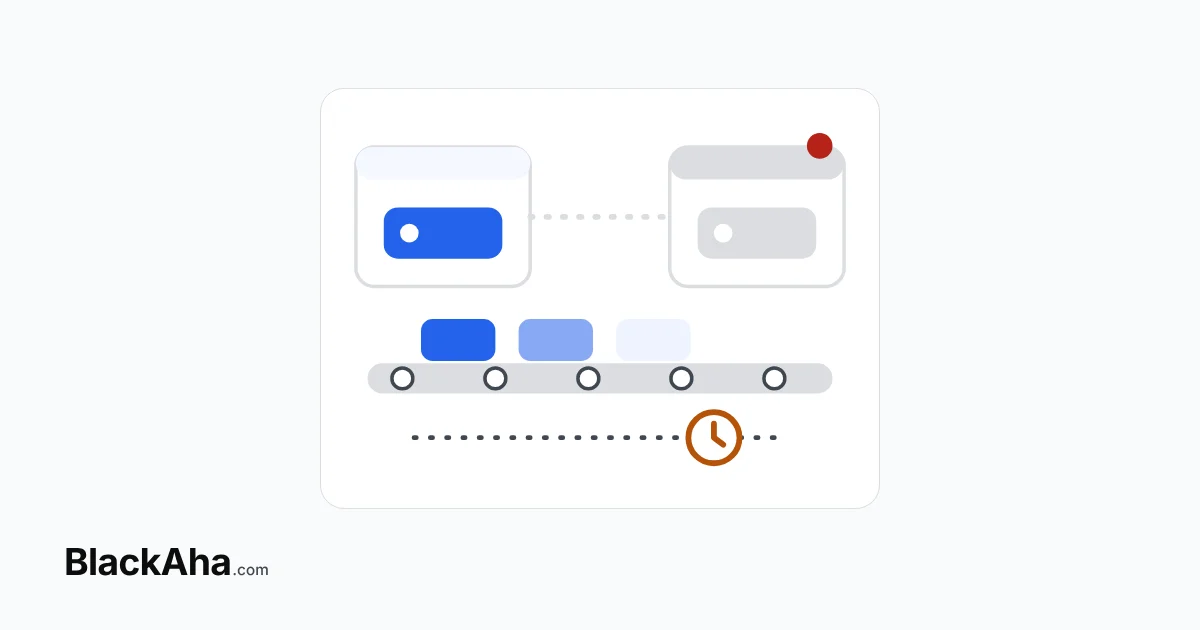
The plugin reads the price back from the store to confirm it, and applies each update only once, even if it arrives twice. In WordPress, WooCommerce → Pricing Updater lists the old price, the new price and the result. In BlackAha, the price update history moves from Updating to Updated.
What happens when the rival raises its price again?
The same loop runs upward. Say the rival goes to $52.00. The rule gives $50.96, and rounding makes it $50.99. That is above the regular price of $49.00. So the plugin replaces the regular price with $50.99 and ends the sale.
This matters if you want $49.00 to stay your “real” regular price. If so, add a Maximum price guardrail of $49.00. The rule then stops at your regular price and never goes above it.
Where can the loop stop?
Each stop is shown with a reason, so nothing fails silently. The common ones:
- No rule applies, or the rule keeps the current price. Nothing is sent.
- Unknown or duplicate SKU. The plugin skips the update and logs it.
- Different currency. The plugin does not convert currencies, so the update is not applied.
- Too many decimals. Prices must fit your store’s decimal setting. Rounding in the rule prevents this.
- No confirmation in time. Check that the store is online and the plugin is active.
Some products should not join the loop at all, such as bundles or clearance stock. Our guide on which products to keep on manual pricing covers them. Narrow the rule’s scope to leave them out.
How BlackAha helps
BlackAha.com tracks competitor prices and runs the whole loop for WooCommerce stores. You build rules in Dynamic Pricing and press Preview products in scope to see each final price, and the reason, before anything changes. The store integration connects in one click from WooCommerce → Pricing Updater.
Rules can also use Smart Price recommendations as references or limits. Start small: our guide to trying rule-based pricing on one category first shows a careful rollout.
Key takeaways
- The loop runs in a fixed order: rival price, rule, rounding, guardrails, plugin, read-back, log.
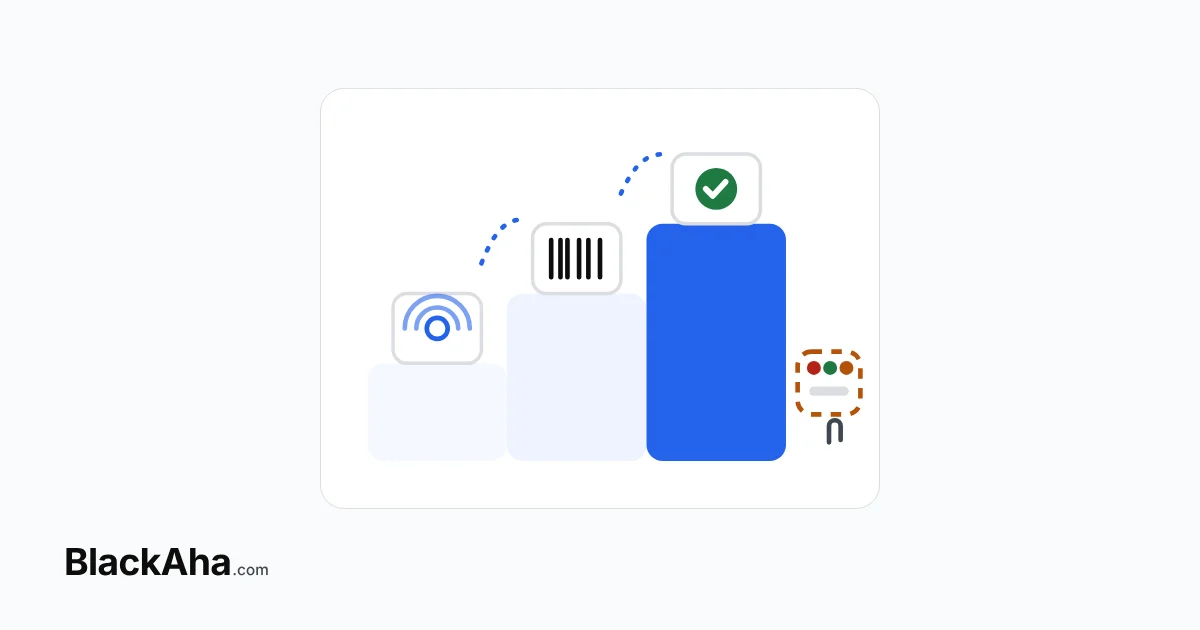
- Guardrails run last. In the example, the floor turned $42.99 into $43.00.
- A price below the regular price becomes the sale price. A price at or above it replaces the regular price and ends the sale.
- Every product or variation needs a unique SKU, your store currency and the right number of decimals.
- Each update is confirmed and logged, in BlackAha and in WordPress.
Frequently asked questions
Does automatic repricing change my WooCommerce regular price?
Only when the new price is at or above it. A lower price is set as the sale price and the regular price stays. A Maximum price guardrail equal to your regular price keeps it unchanged.
Can a rule push my price below my costs?
Not if you set a Minimum price guardrail. Guardrails are checked after every rule and after rounding, so the final price cannot go below the floor.
How do I know a new price really reached my store?
The plugin reads the price back before it counts as applied. Check WooCommerce → Pricing Updater in WordPress, or the price update history in BlackAha, where it shows as Updated.
What if I delete the plugin?
The connection stops, and the plugin’s settings and log are removed. Product prices stay as they are. They are not changed back.
Pick one product, write its rule with a floor, and run the preview before you connect anything. You can try BlackAha on your own WooCommerce store.
 English
 ไทย
 Tiếng Việt
 한국어
 日本語
 简体中文
 Français
 Deutsch
 Русский
 Italiano
 Polski
 Español